

View Tasks and Determine Status
Click “Task Board” in the left sidebar to enter “Task Tracking.” The top of the page provides filters and allows you to switch between list and swimlane views. Accounts with manual processing capabilities will also see the “Approval Workspace.”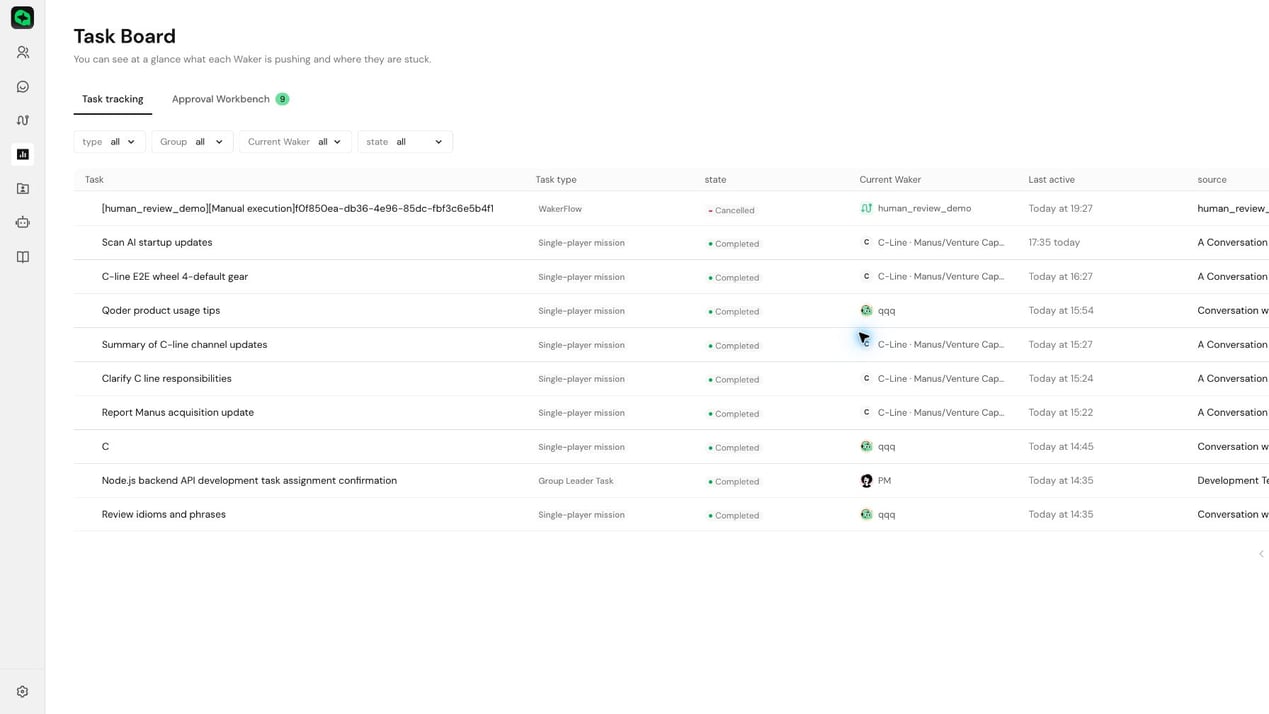
“Completed” only means the run has finished — it does not guarantee that the business result is correct. Before delivery, you should still open the original task to verify outputs, files, and key conclusions.
Find and Handle Tasks
- In the list view, filter by type, group, Waker, or status; confirm the target based on name, source, and last active time.
- Switch to the swimlane view when you need to see overall distribution — prioritize “Action Required” and “Failed / Canceled.”
- When there are items awaiting confirmation, go to the “Approval Workspace,” click “Handle,” and complete the operation in the original task.
- Click the task name or card to return to the original conversation, automated task, or WakerFlow to view the full result.