

View Memory and Confirm Scope
The system may automatically summarize memory, but important rules still require manual review.
- Go to the target Waker’s detail page.
- Click “Memory” and review content in “Memory Overview” or “All Memories.”
- Use the search box, category cards, or project dropdown to locate the target memory.
- In “All Memories,” confirm whether the current scope is personal or project-level.
- Before editing project memory, verify the project name and status; click “Retry Initialization” if initialization failed.
- Projects no longer in use can be archived — confirm that no subsequent tasks depend on them before archiving.
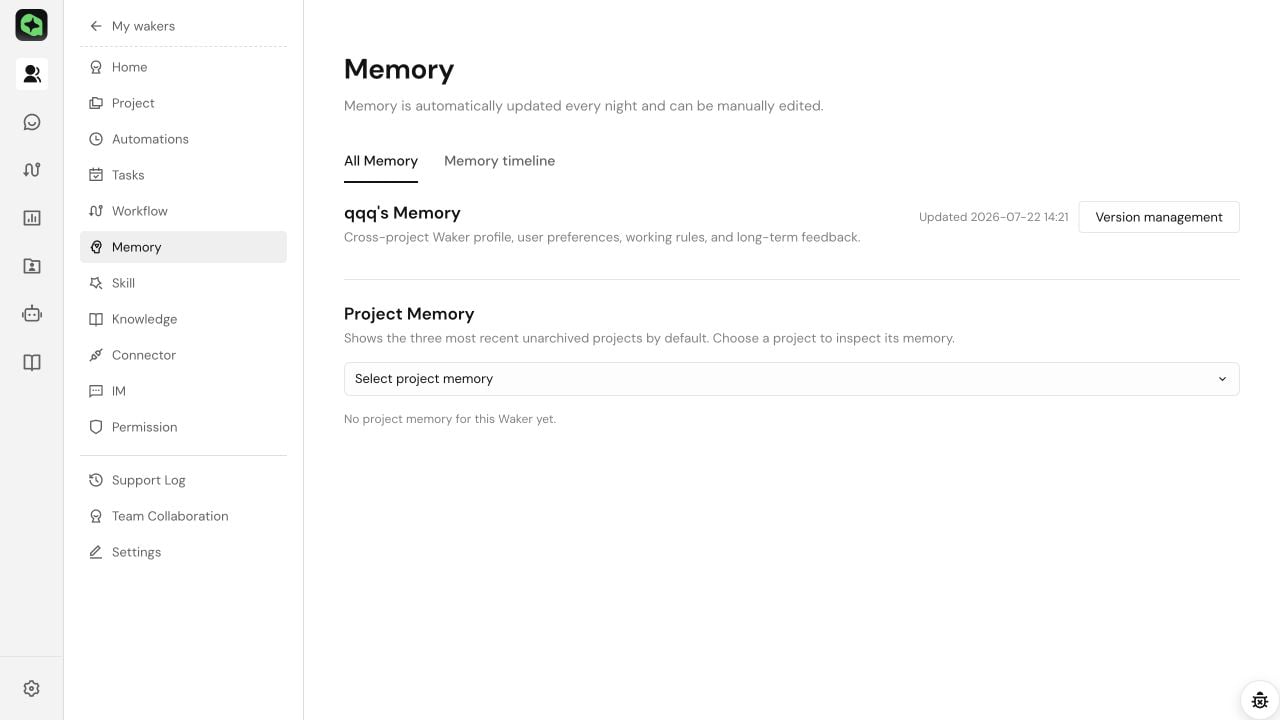
When a new Waker has not yet had an effective session, the page may display “No content yet.”
Edit Memory
- Find the target category in the category cards.
- Click “Edit,” modify the content using concise, clear Markdown, and save.
- Go to “Memory Timeline” to confirm that a manual edit record has appeared, then verify with a new conversation.
Trace, Rollback, and Maintain Memory
Trace Changes
- Switch to the “Memory Timeline.”
- Filter by time and source, then open a record to view its scope, category, and change content.
- When a Waker suddenly follows an incorrect rule, first look for the most recent additions or updates.
Roll Back to a Historical Version
- Click “Version Management” on the memory page.
- Select a version to view the full content and differences.
- After verifying the scope, click “Rollback.”
- Return to the current version to check the content, and verify with a new conversation.