

Applicable plans: Teams, Enterprise
- Admin: A billable role. Has full administrative permissions for the organization. They can access the admin console to manage billing and other settings. Can use all advanced features and the resources associated with their seat.
- Member: A billable role. Can use all advanced features and the resources associated with their seat. Cannot access the admin console.
The default role for new members is Member. Administrators can change this setting by navigating to Organization Settings > Member Configuration > Default Role.
Role Permissions
Add Members
You can add members to your organization using multiple methods:- By approving applications from an invite link
- By email invitation
- By configuring Single Sign-On (SSO) for automatic joining
- By manual creation Enterprise only

Invite via Link
Administrators can navigate to Organization Settings > Member Configuration to enable the invite link feature, set an expiration period, and generate an invite link.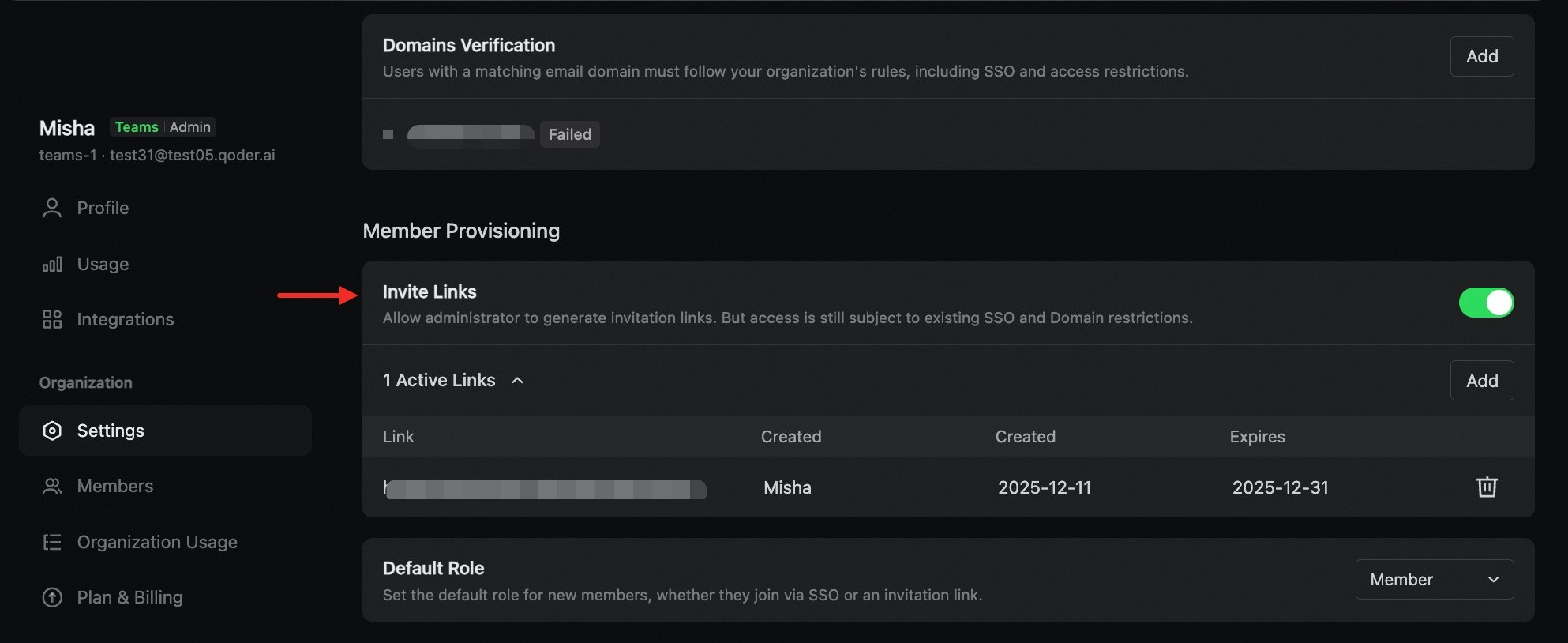
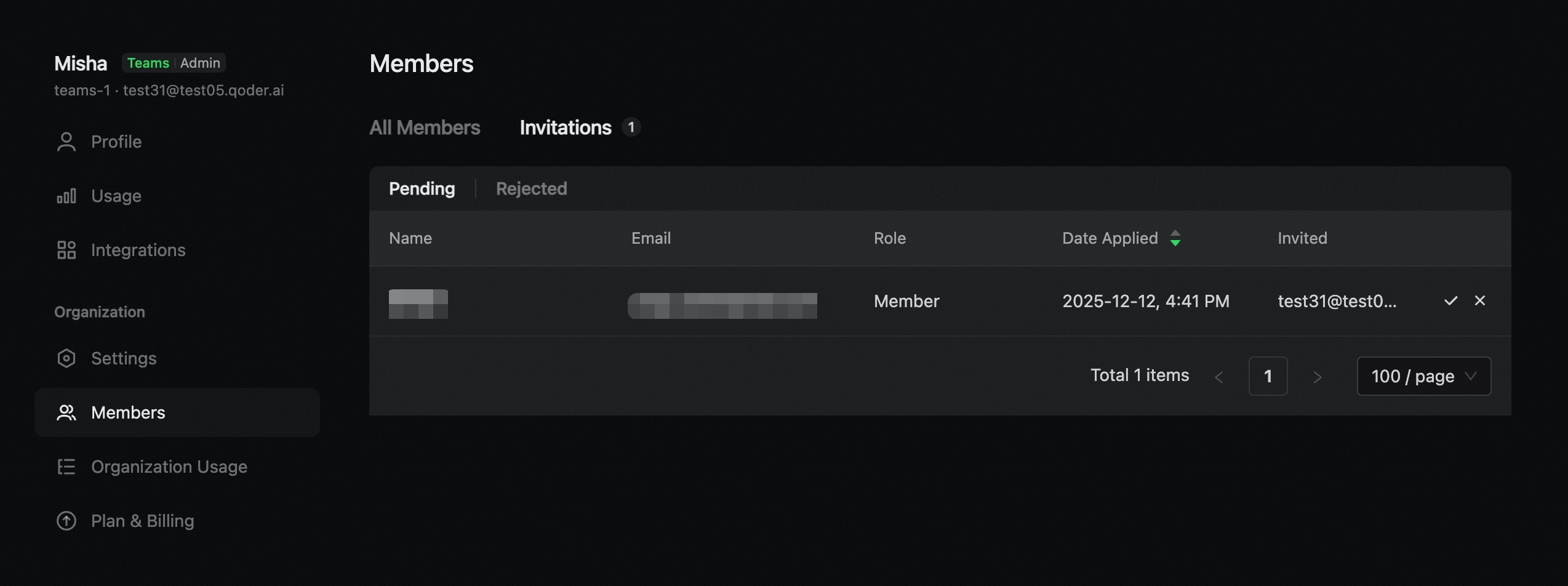
For security purposes, only Administrators are allowed to generate invite links.
Email Invitation
Administrators can navigate to Members > Add Members and select email invitation. Choose the invitation validity period and role, then enter the target recipients’ email addresses. Multiple email addresses can be pasted at once and will be automatically recognized and populated.Email invitations do not require additional admin approval — recipients can join the organization directly using the link in the email.
Join via Single Sign-On (SSO)
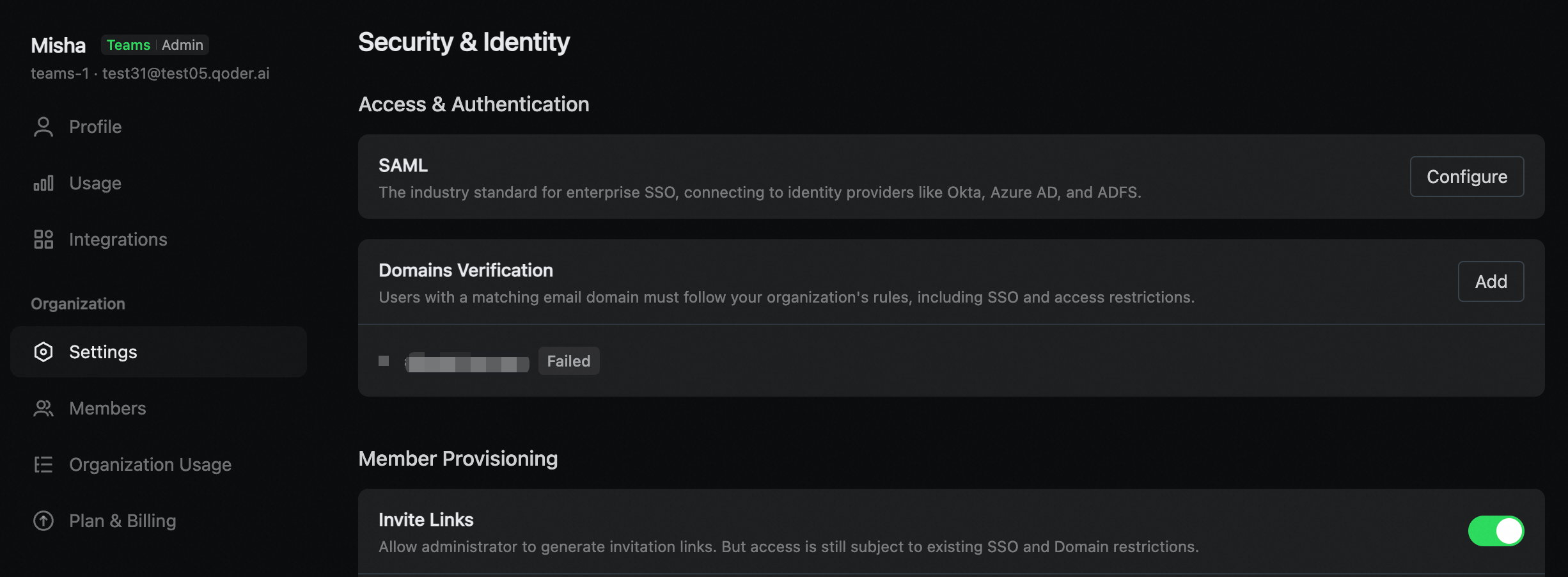
Administrators can navigate to Organization Settings > Security & Identity to configure Domain Verification and SAML Single Sign-On (SSO). See: After SSO is configured and enabled, any user with an email address from a verified domain will be automatically added to your organization with the default role upon signing in.When configuring SSO, please review the scope of your verified domains to ensure that users are added automatically as expected.
If the default role is a billable role, the user will immediately occupy a seat and be billed upon joining.If there are no available seats in the organization, users will be unable to join automatically via SSO. In this case, please contact your organization’s administrator to purchase more seats, then try logging in again to re-trigger the automatic organization joining.
Modify Member Roles
Administrators can modify member roles at any time. Navigate to Organization Settings > Member Management, select the target user, click the … icon on the right side of the list, and choose the Edit Role option.- Assigning a user to a billable role will immediately occupy a seat. This seat will remain occupied for the entire current billing cycle.
An organization must have at least 2 billable members and at least one Administrator.
Remove Members
Administrators can remove members at any time, provided the organization’s minimum member and role requirements are met. The removal is effective immediately. Navigate to Organization Settings > Member Management, select the target user, click the … icon on the right side of the list, and choose the Remove Member option. Upon removal, the member will be removed from the organization, and their account will be downgraded to the Free. All their organization-related data will be permanently deleted. This action is irreversible. Please note:-
If a user who was occupying a seat is removed, that seat will continue to be billed through the end of the current billing cycle, even if the user is removed. The seat cannot be reassigned to another user during that period. Even if the user rejoins, they cannot reuse this seat.
- Teams plan special note: Since seats include a Credits quota, removing a member will clear the remaining Credits on that seat. If the user has not used any Credits in the current cycle at the time of removal, the seat will be returned and can be reassigned to another user.
- If you have Single Sign-On (SSO) enabled, you must also remove the user from your Identity Provider (IdP). Otherwise, the system will automatically re-add them to the organization the next time they attempt to sign in.
Members and Seat Billing
When a new member joins the organization, they are added with the default role:- An Admin or Member will immediately occupy a seat. For seat pricing, please refer to the Plans & Pricing.
- When adding a new seat during a billing cycle, you will be charged on a prorated basis for the remainder of the cycle. If the seat includes Credits (Teams plan), the included Credits will also be allocated proportionally.