

URL Format
Available Deeplink Types
Create Chat /chat
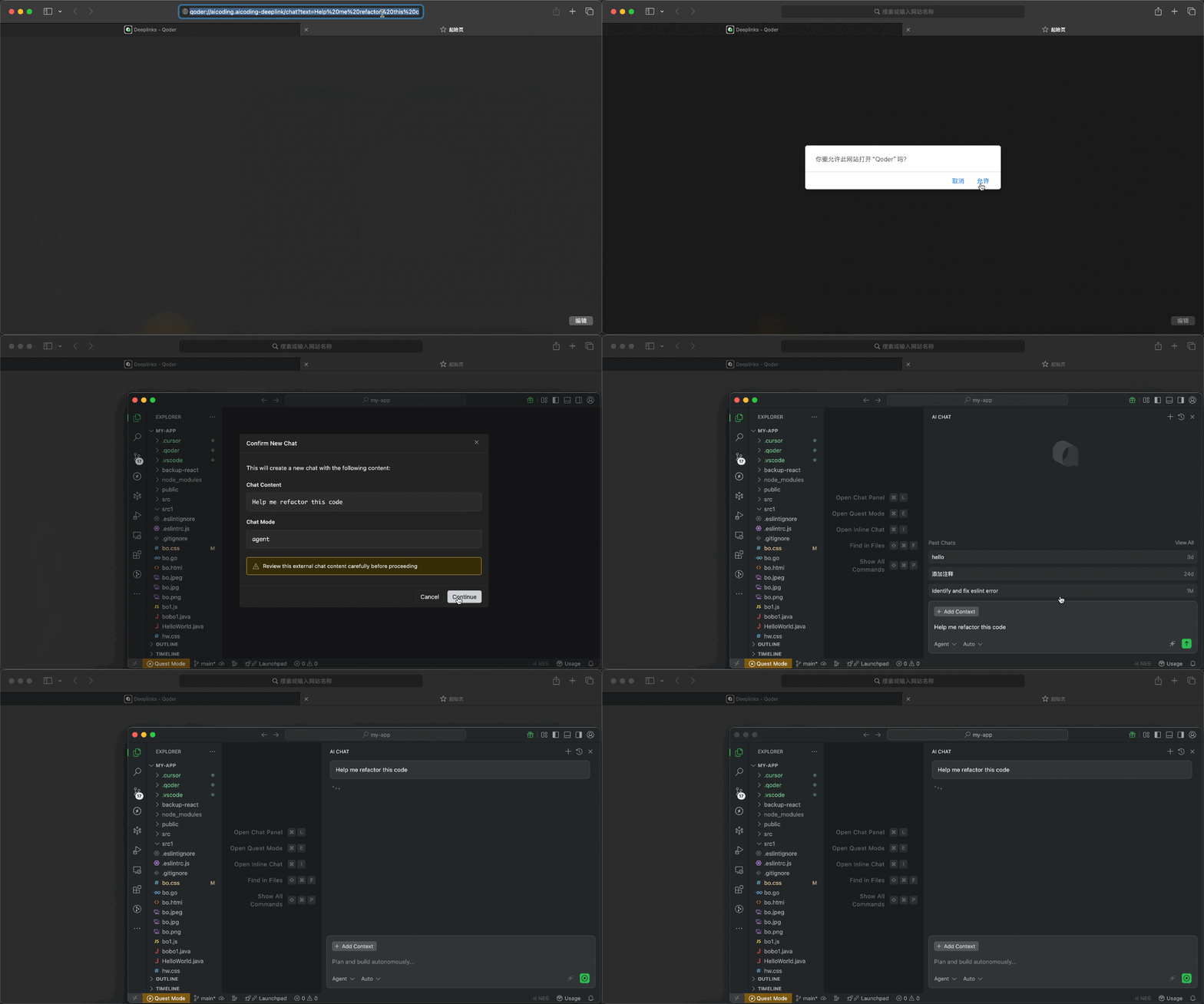
Open a chat session directly via a link. When opening the link, Qoder Desktop will first show the content to be brought into the new conversation. After confirmation, it will create a new chat and pre-fill the text into the input box without sending it automatically. You must be logged in before using it.URL Format
Parameters
Example
Generate Link Code
- TypeScript
- Python
Create Quest Task /quest
Open or focus the independent Quest window and pre-fill a new Quest draft. When opening the link, you can review the task description and execution mode before deciding whether to proceed. You must be logged in before using it.URL Format
Parameters
Execution Modes
Example
Generate Link Code
- TypeScript
- Python
Create Rule /rule
Import rules to guide AI behavior via a link. Rules can define coding standards, project conventions, or specific instructions for AI responses. When opening the link, you can first review the rule name and content before deciding whether to import it; upon confirmation, the corresponding rule will be created.URL Format
Parameters
Example
Generate Link Code
- TypeScript
- Python
Add MCP Service /mcp/add
Quickly add MCP (Model Context Protocol) service configurations via a link. MCP services extend AI capabilities by providing additional tools and context sources. When opening the link, Qoder Desktop will first display the service information to be added and open the MCP settings page, allowing you to review and confirm simultaneously.URL Format
Parameters
Note: The configuration must contain eithercommandorurl; if the name already exists, it cannot be added again.
Example
Generate Link Code
MCP service JSON configuration encoding Process:- Create the configuration JSON object
- Serialize with
JSON.stringify() - URL encode with
encodeURIComponent() - Base64 encode with
btoa() - URL encode the result with
encodeURIComponent()
- TypeScript
- Python
Create Command /command
Quickly create custom commands via links, ideal for distributing common prompt templates, project operation guides, or team-agreed commands. When opening the link, Qoder Desktop will first display the command name, scope, description, and content before creating it upon confirmation.URL Format
Parameters
Scope
Example
Generate Link Code
- TypeScript
- Python
Usage Notes
- After clicking the link, Qoder Desktop will first display the command information for your confirmation.
namecannot be empty and can only use lowercase letters, numbers, hyphens, and underscores.scope=projectrequires you to have a workspace currently open; otherwise, it cannot be created.- Commands with the same name cannot be created repeatedly.
Security Considerations
Important: Always review Deeplinks content before clicking.
- Never include sensitive data: Do not embed API keys, passwords, or proprietary code in Deeplinks
- Verify the source: Only click Deeplinks from trusted sources
- Review before confirming: Qoder Desktop always shows a confirmation dialog - carefully review the content before proceeding
- No automatic execution: Deeplinks never execute automatically; user confirmation is always required
Troubleshooting
URL Length Limits
Deeplink URLs should not exceed 8,000 characters. For longer content, consider:- Shortening the prompt or rule content
- Using external references instead of inline content
- Splitting into multiple deeplinks