Beyond remote-controlling your computer, the mobile app can run tasks directly in a cloud environment — useful when you do not have your computer with you, or when you want to ship something on the go without waking your desktop.
1
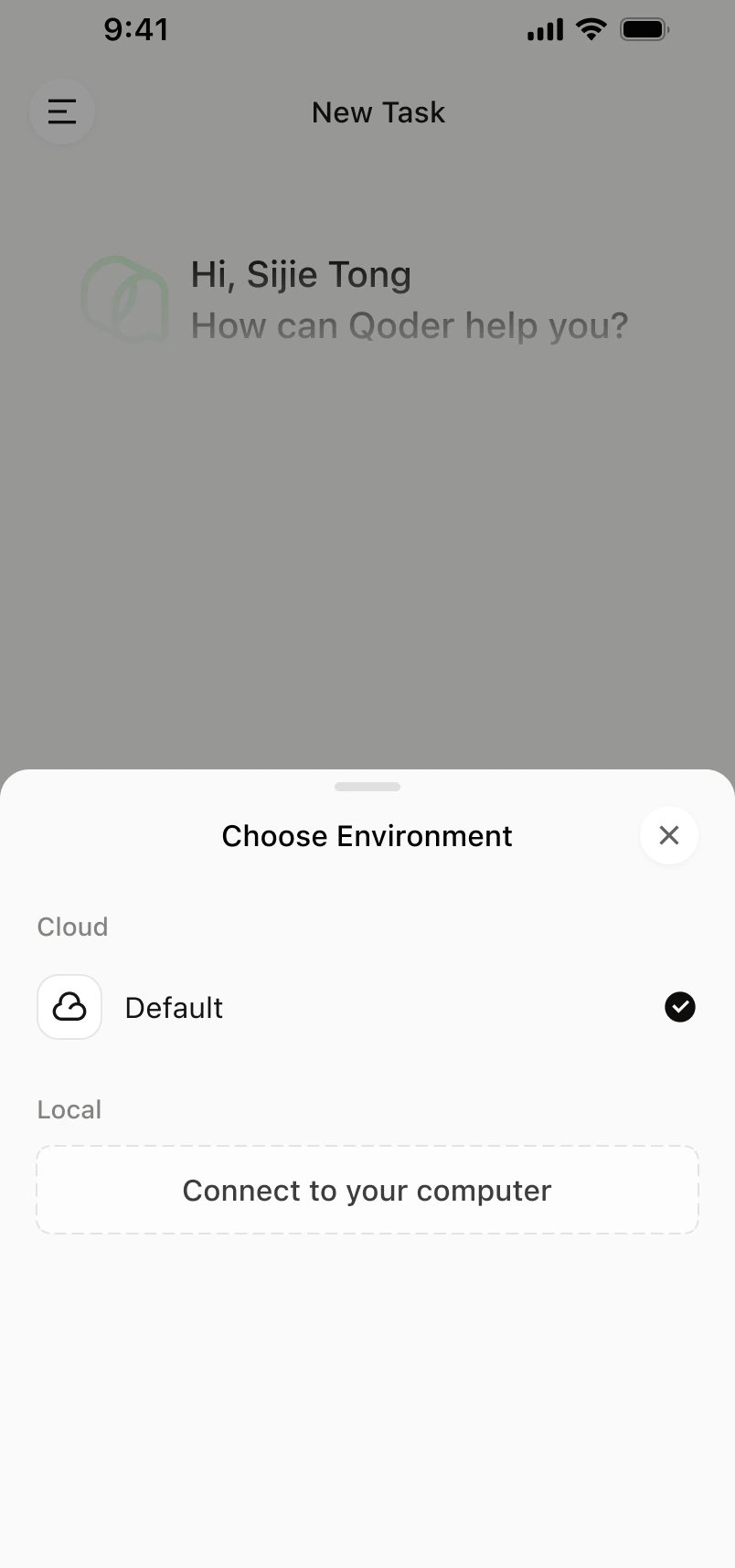
Choose the environment
On the New Task screen, choose an environment (defaults to Default). Pick a Cloud environment to run the task in the cloud, or Connect to your computer to run it locally.
Pick a cloud environment or your local computer
2
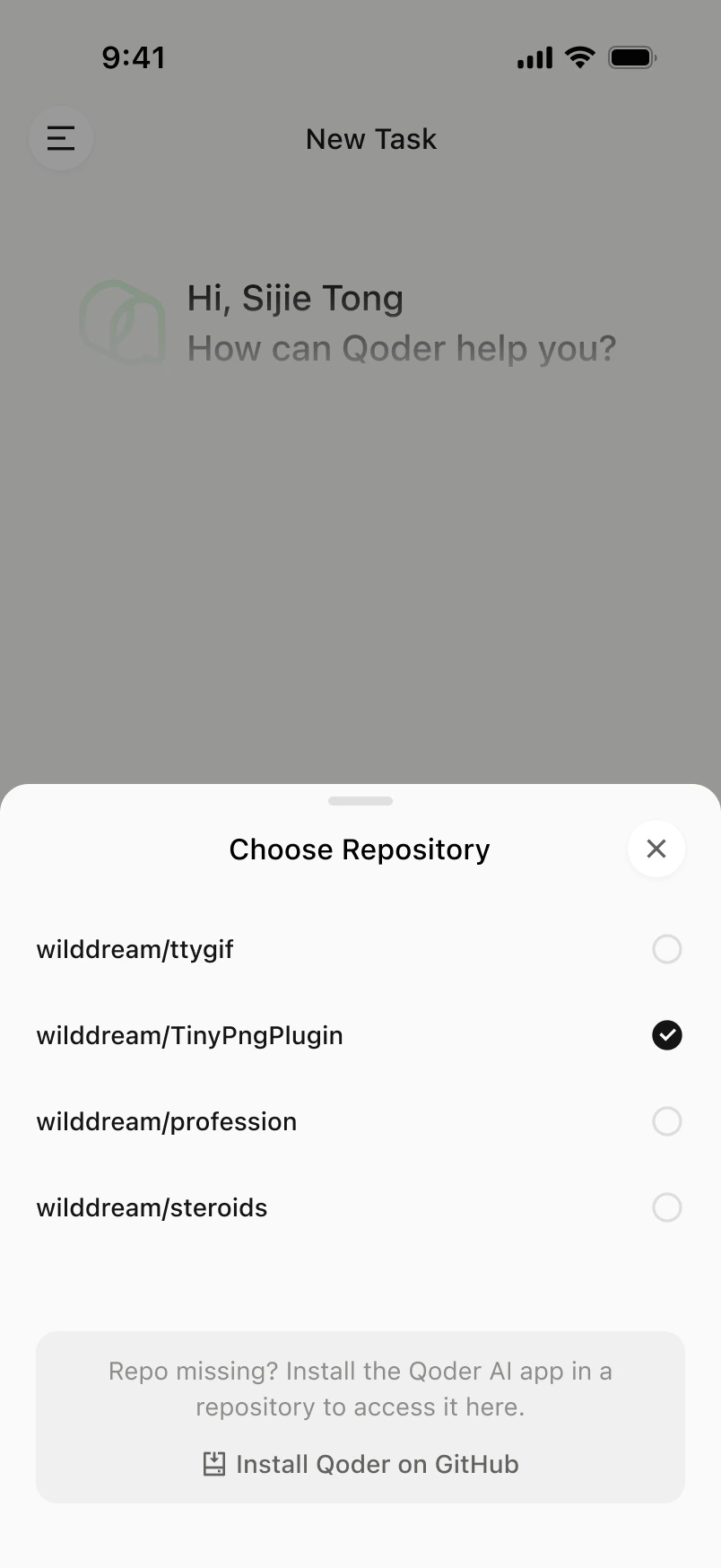
Pick a GitHub repository and branch
After choosing a cloud environment, link your GitHub account and pick the repository and branch the task should work against. Use the Repository and Branch dropdowns at the top of the input area.
Choose a GitHub repository
If a repo is missing from the list, tap Install Qoder on GitHub and enable the Qoder AI app on that repository to grant access.
3
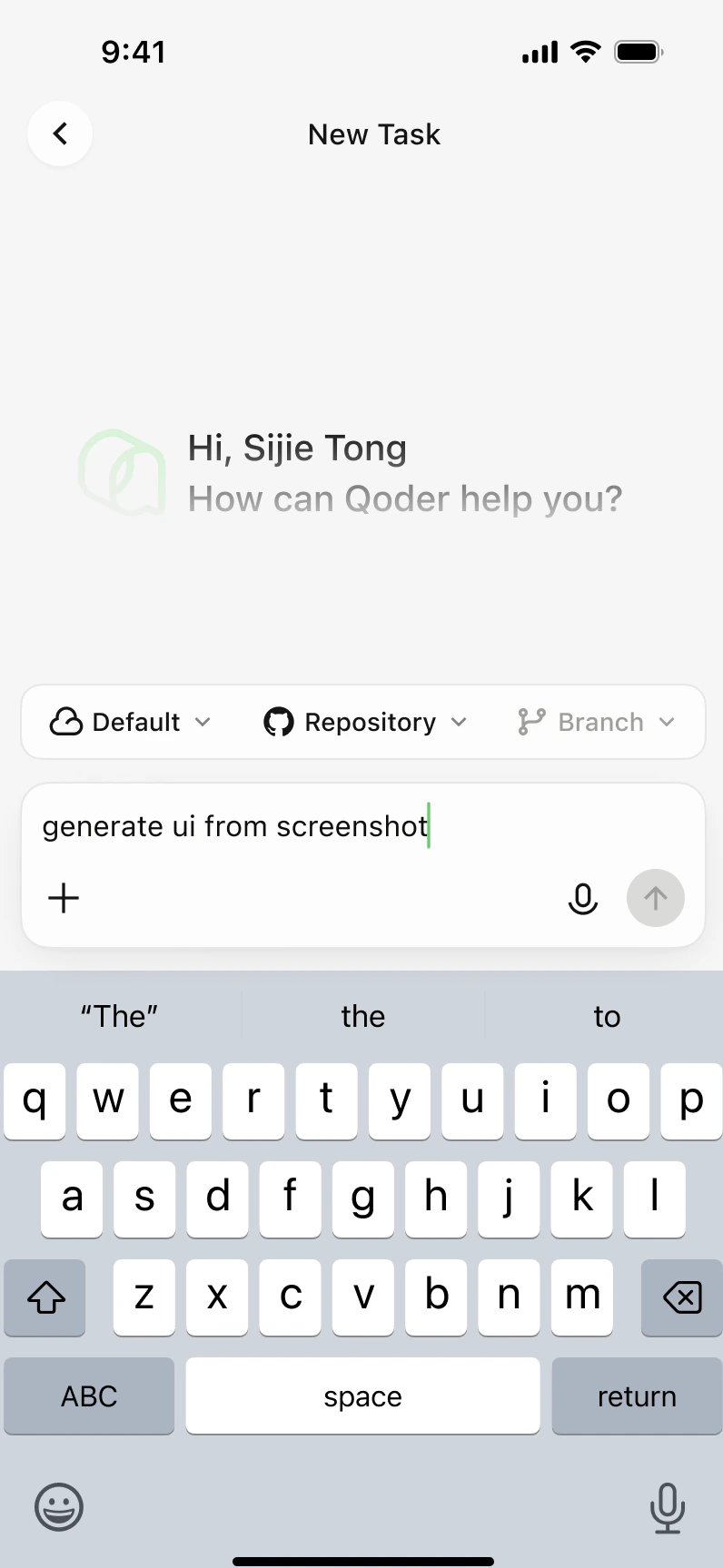
Describe the task and ship it
Enter your prompt — e.g. “generate ui from screenshot” — and send. The cloud environment runs the task without occupying your local machine.
Send a cloud task from the New Task screen
4
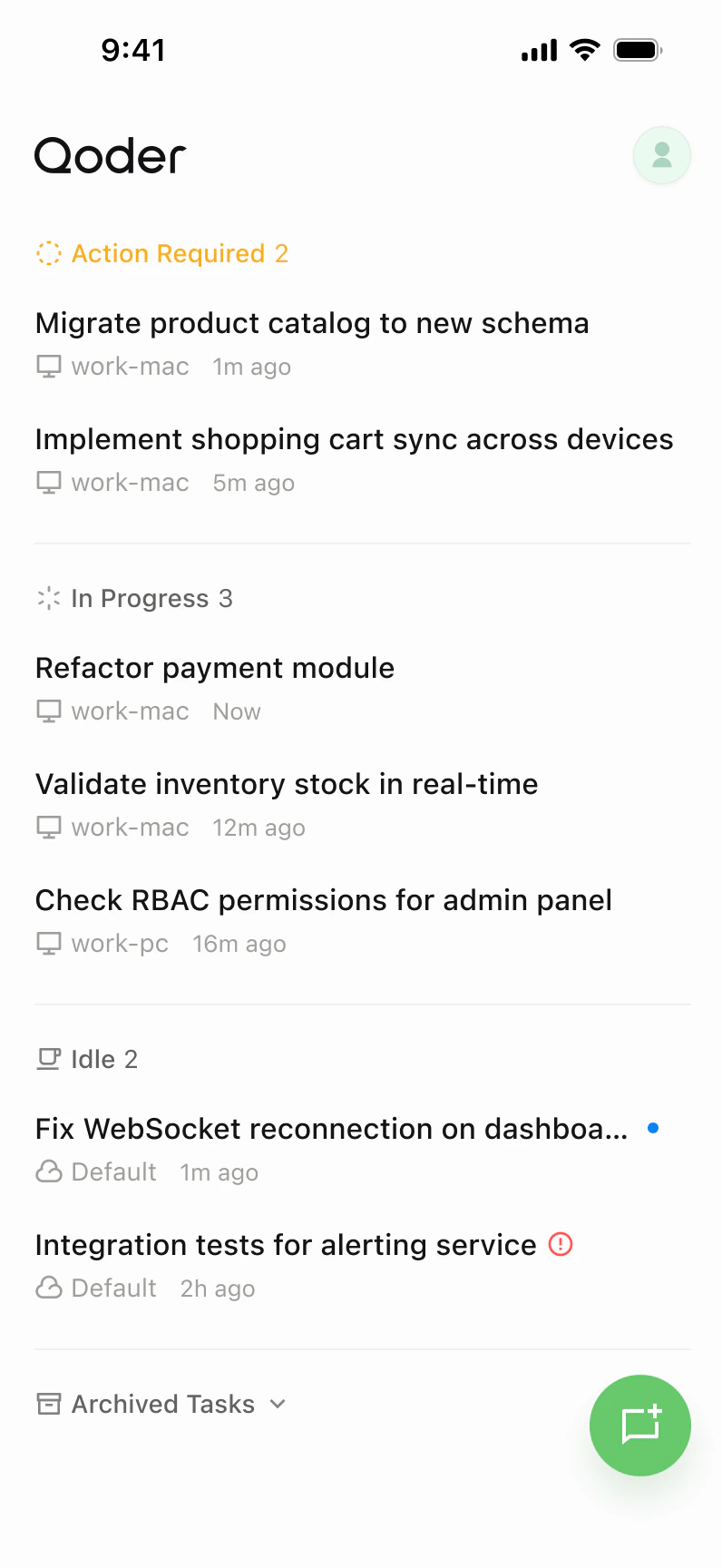
Track it in the conversation list
Cloud tasks appear alongside local tasks in the conversation list, so you can monitor progress, status, and pending actions in one place.