> ## Documentation Index
> Fetch the complete documentation index at: https://docs.qoder.com/llms.txt
> Use this file to discover all available pages before exploring further.
# Interface Guide
> Learn the QoderWork interface layout and quickly find the features you need
The first time you open QoderWork, the layout may feel unfamiliar. This page walks you through the main window structure and the key controls in each area.
## Overall Layout
The QoderWork main window has two primary areas: the **sidebar** and the **center area**. When a task is running, the **Task Monitor** panel appears on the right.
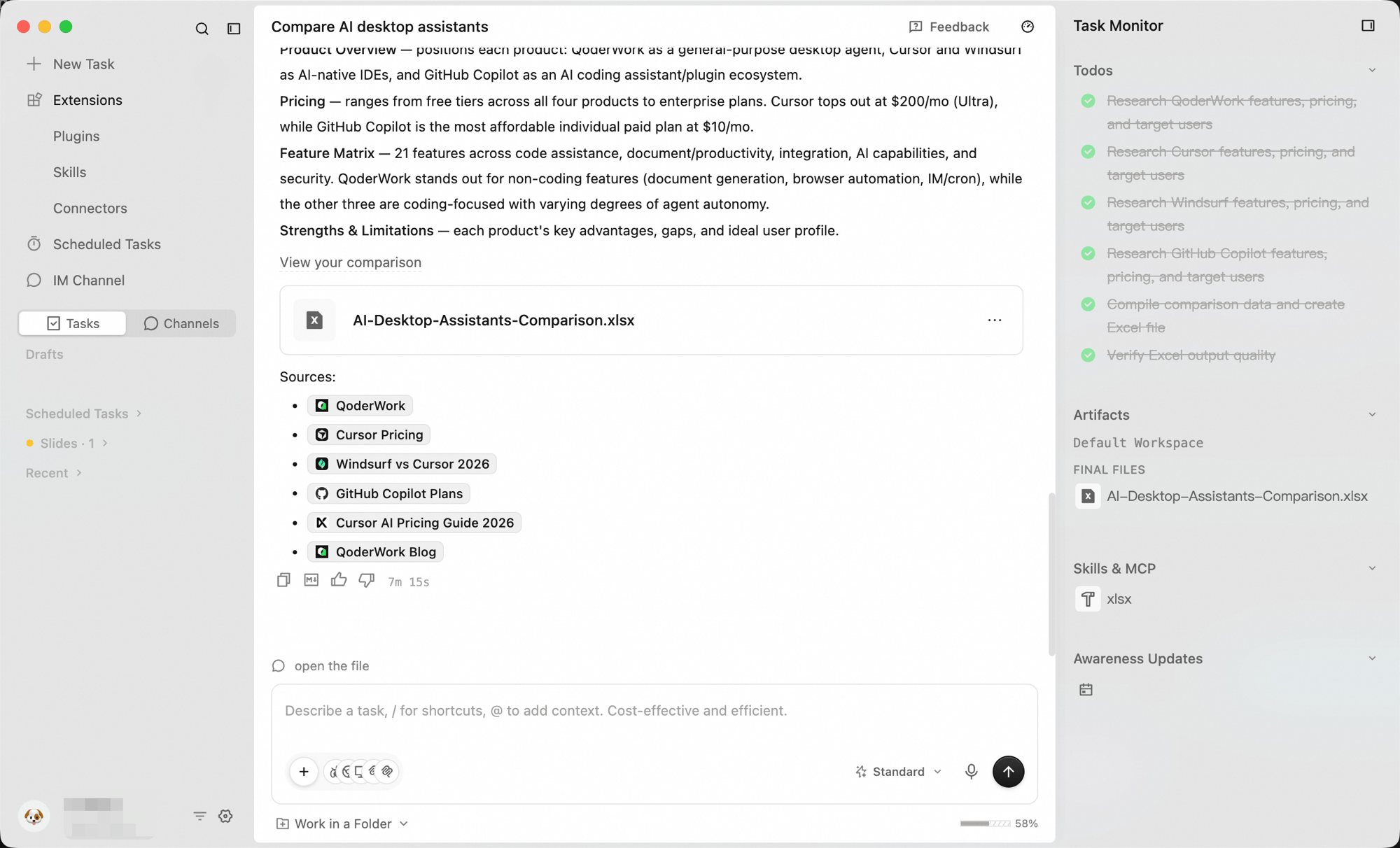 New Task, extension entries, task list, account and settings
Empty-state prompt, the task conversation stream, and the input box at the bottom for instructions, workspace/model switching, and attachments
Appears on the right while a task runs, tracking its progress
## Sidebar
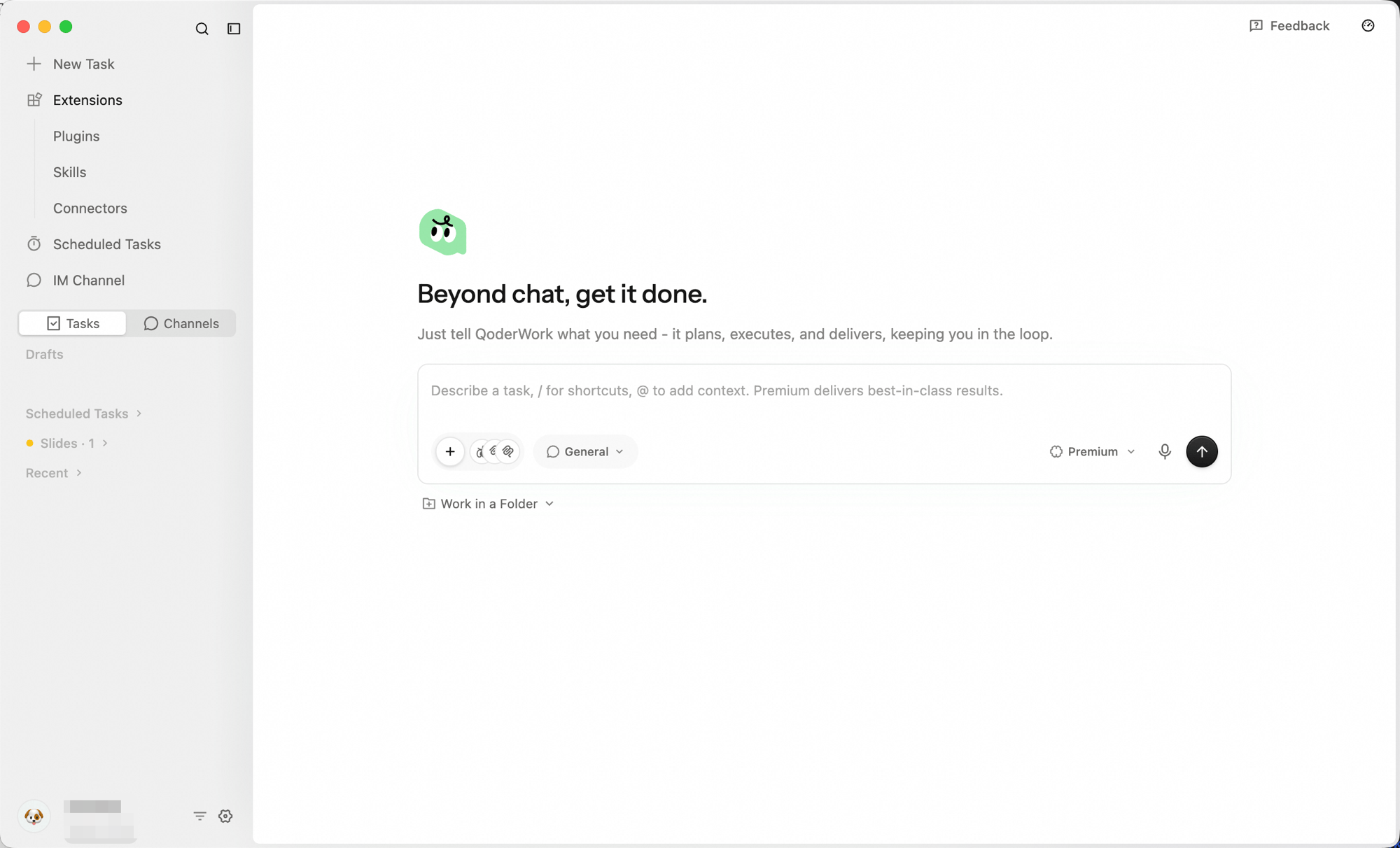
The sidebar sits on the left side of the window and is **collapsible** to give the center area more space.
New Task, extension entries, task list, account and settings
Empty-state prompt, the task conversation stream, and the input box at the bottom for instructions, workspace/model switching, and attachments
Appears on the right while a task runs, tracking its progress
## Sidebar
The sidebar sits on the left side of the window and is **collapsible** to give the center area more space.
 ### Top
* **New Task** — Creates a new conversation task.
### Extensions Group
Click **Extensions** to expand its three sub-items:
* **Expert Kits** — packaged domain expertise (legal contract review, wealth management, PM workflows) that turns the AI into a role-specific specialist with one click. See [Expert Kits](/qoderwork/expert-kits).
* **Skills** — pre-written playbooks for recurring task types (weekly reports, document organization, infographic generation) so the AI follows your conventions every time. See [Skills](/qoderwork/skills).
* **Connectors** — let the AI directly operate your browser, native macOS apps (Calendar, Reminders, Notes, Mail, Contacts), and Microsoft 365 (Outlook Mail, Calendar, To Do, Contacts, OneNote, OneDrive), plus an integration market for DingTalk, Notion, Linear, Slack, Figma, Google Calendar, and other SaaS. See [Connectors](/qoderwork/connectors).
### Scheduled Tasks
A top-level sidebar entry alongside Extensions. Time-triggered tasks that auto-open a new conversation at the scheduled time and run a prompt you defined (daily data pulls, weekly reports, month-end summaries). See [Scheduled Tasks](/qoderwork/scheduled-tasks).
### IM Channels
A top-level sidebar entry alongside Extensions. Bridge QoderWork into IM apps (DingTalk, Feishu, Lark, WeChat, WeCom) so you can @ the bot in chat to run tasks remotely; results come back in the same chat. See [IM Channels](/qoderwork/im-channels).
### Task List
The lower half of the sidebar is your history area. A **Tasks / Channels** toggle decides whether you see task history or channel history. Below the toggle sits a search box (placeholder *"Search task title or conversation content..."*) for filtering the current list, and under it the items grouped under **Recent** — click any item to pick up where you left off.
### Bottom
Click the account avatar to open a quick menu:
* **Plan Expiration** — when your current plan renews or expires.
* **Settings** — model, language, theme, and every other preference.
* **Preferences** — quick access to UI preferences such as language.
* **Upgrade Plan** — open the plan management page in your browser.
* **Documentation**, **Changelog**, **About Us** — help and product information.
* **Log out** — switch accounts when you need to.
### Top
* **New Task** — Creates a new conversation task.
### Extensions Group
Click **Extensions** to expand its three sub-items:
* **Expert Kits** — packaged domain expertise (legal contract review, wealth management, PM workflows) that turns the AI into a role-specific specialist with one click. See [Expert Kits](/qoderwork/expert-kits).
* **Skills** — pre-written playbooks for recurring task types (weekly reports, document organization, infographic generation) so the AI follows your conventions every time. See [Skills](/qoderwork/skills).
* **Connectors** — let the AI directly operate your browser, native macOS apps (Calendar, Reminders, Notes, Mail, Contacts), and Microsoft 365 (Outlook Mail, Calendar, To Do, Contacts, OneNote, OneDrive), plus an integration market for DingTalk, Notion, Linear, Slack, Figma, Google Calendar, and other SaaS. See [Connectors](/qoderwork/connectors).
### Scheduled Tasks
A top-level sidebar entry alongside Extensions. Time-triggered tasks that auto-open a new conversation at the scheduled time and run a prompt you defined (daily data pulls, weekly reports, month-end summaries). See [Scheduled Tasks](/qoderwork/scheduled-tasks).
### IM Channels
A top-level sidebar entry alongside Extensions. Bridge QoderWork into IM apps (DingTalk, Feishu, Lark, WeChat, WeCom) so you can @ the bot in chat to run tasks remotely; results come back in the same chat. See [IM Channels](/qoderwork/im-channels).
### Task List
The lower half of the sidebar is your history area. A **Tasks / Channels** toggle decides whether you see task history or channel history. Below the toggle sits a search box (placeholder *"Search task title or conversation content..."*) for filtering the current list, and under it the items grouped under **Recent** — click any item to pick up where you left off.
### Bottom
Click the account avatar to open a quick menu:
* **Plan Expiration** — when your current plan renews or expires.
* **Settings** — model, language, theme, and every other preference.
* **Preferences** — quick access to UI preferences such as language.
* **Upgrade Plan** — open the plan management page in your browser.
* **Documentation**, **Changelog**, **About Us** — help and product information.
* **Log out** — switch accounts when you need to.
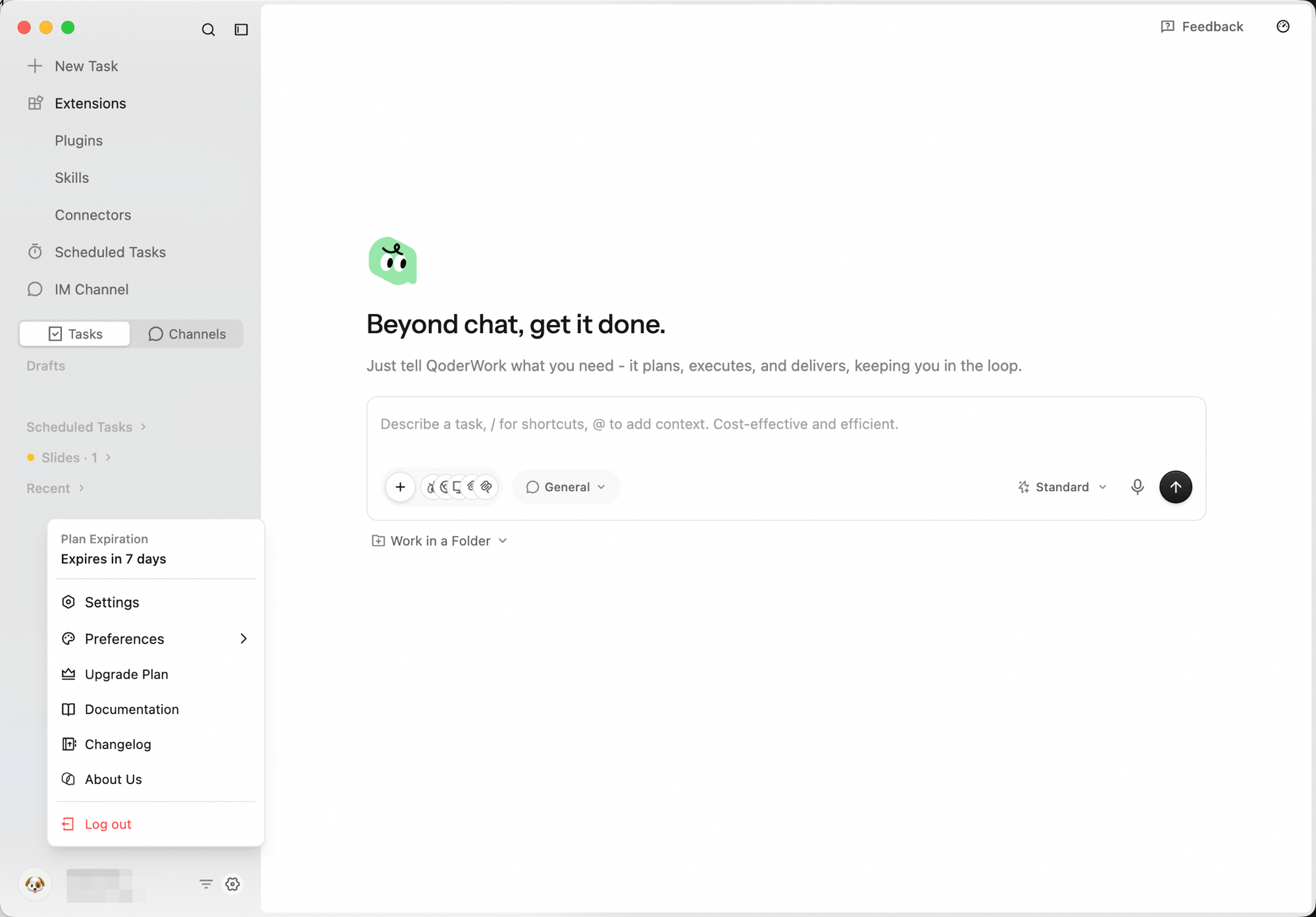 Click **Settings** from this menu to open the full settings page, where you can manage your model, language, theme, voice input, shortcuts, workspaces, and every other preference in one place.
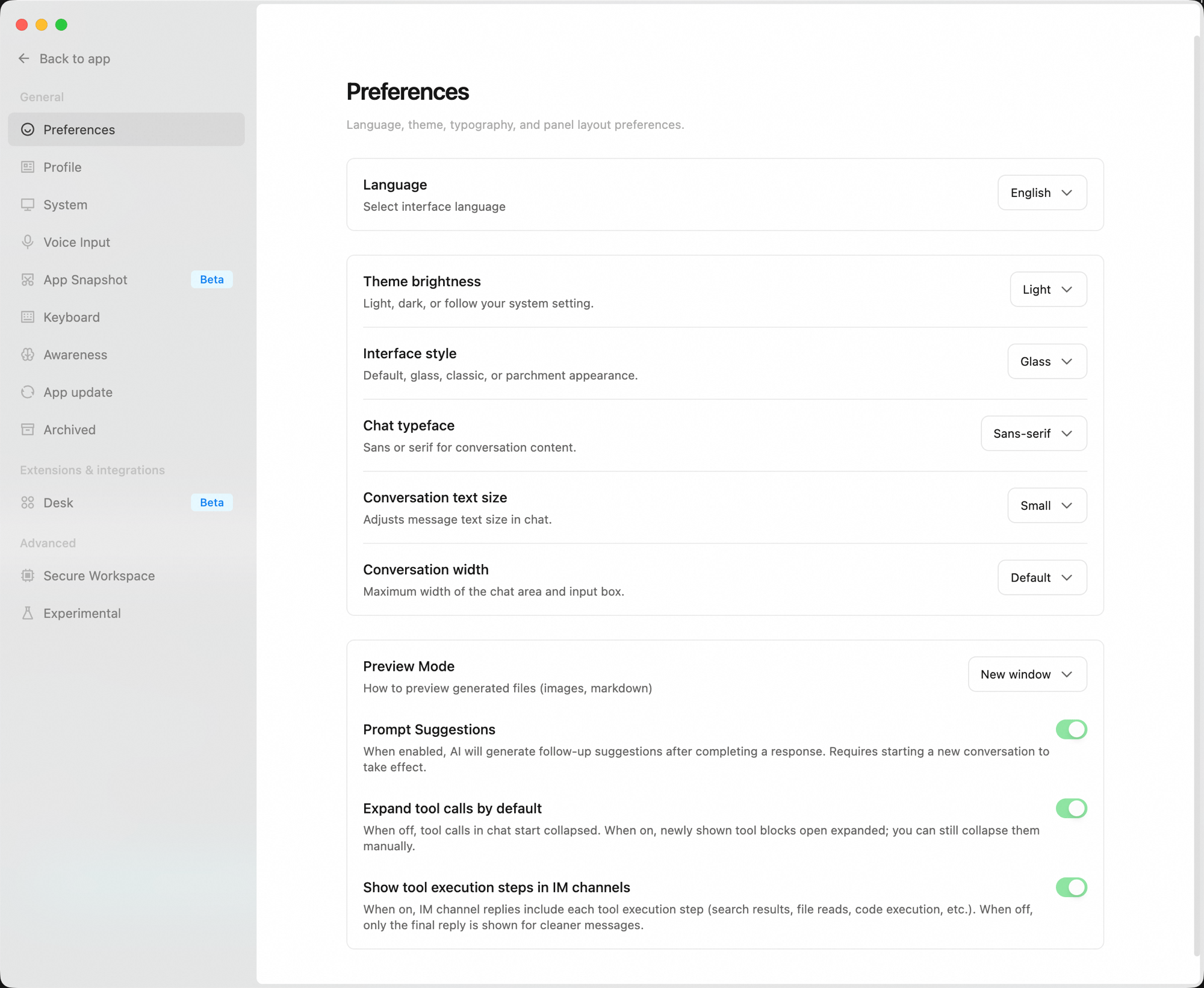 For the full list of preference items, see [Settings](/qoderwork/settings).
## Input Box
The input box sits at the bottom of the center area and is your main entry point for sending instructions.
| Control | Position | Purpose |
| :--------------------------- | :---------------------- | :-------------------------------------------------------------------------- |
| **+** button | Bottom-left | Attach files or add context |
| **Workspace** picker | Bottom-left | Switch the workspace the task runs in; default is **General** |
| **Model** picker | Bottom-right | Switch the model that powers the task |
| Voice input | Bottom-right | Dictate your instructions |
| Send button | Far right | Send the message |
| **Work in a Folder** | Below the input | Bind the task to a local folder so QoderWork can read and write files there |
| button | Top-right of the window | View your account's Credits usage |
For detailed input usage and how to choose between workspaces and models, see [Task Conversations](/qoderwork/chat-basics).
## Task Conversation Area
The center area is where you interact with QoderWork.
### Empty State
Before a task starts, the center shows:
* Headline: **More than chat — get things done**
* Subheading: A locally-running, self-planning, safe and controllable AI work companion
### Conversation Stream
Once a task is sent, your inputs and QoderWork's replies appear as a conversation stream.
For the full list of preference items, see [Settings](/qoderwork/settings).
## Input Box
The input box sits at the bottom of the center area and is your main entry point for sending instructions.
| Control | Position | Purpose |
| :--------------------------- | :---------------------- | :-------------------------------------------------------------------------- |
| **+** button | Bottom-left | Attach files or add context |
| **Workspace** picker | Bottom-left | Switch the workspace the task runs in; default is **General** |
| **Model** picker | Bottom-right | Switch the model that powers the task |
| Voice input | Bottom-right | Dictate your instructions |
| Send button | Far right | Send the message |
| **Work in a Folder** | Below the input | Bind the task to a local folder so QoderWork can read and write files there |
| button | Top-right of the window | View your account's Credits usage |
For detailed input usage and how to choose between workspaces and models, see [Task Conversations](/qoderwork/chat-basics).
## Task Conversation Area
The center area is where you interact with QoderWork.
### Empty State
Before a task starts, the center shows:
* Headline: **More than chat — get things done**
* Subheading: A locally-running, self-planning, safe and controllable AI work companion
### Conversation Stream
Once a task is sent, your inputs and QoderWork's replies appear as a conversation stream.
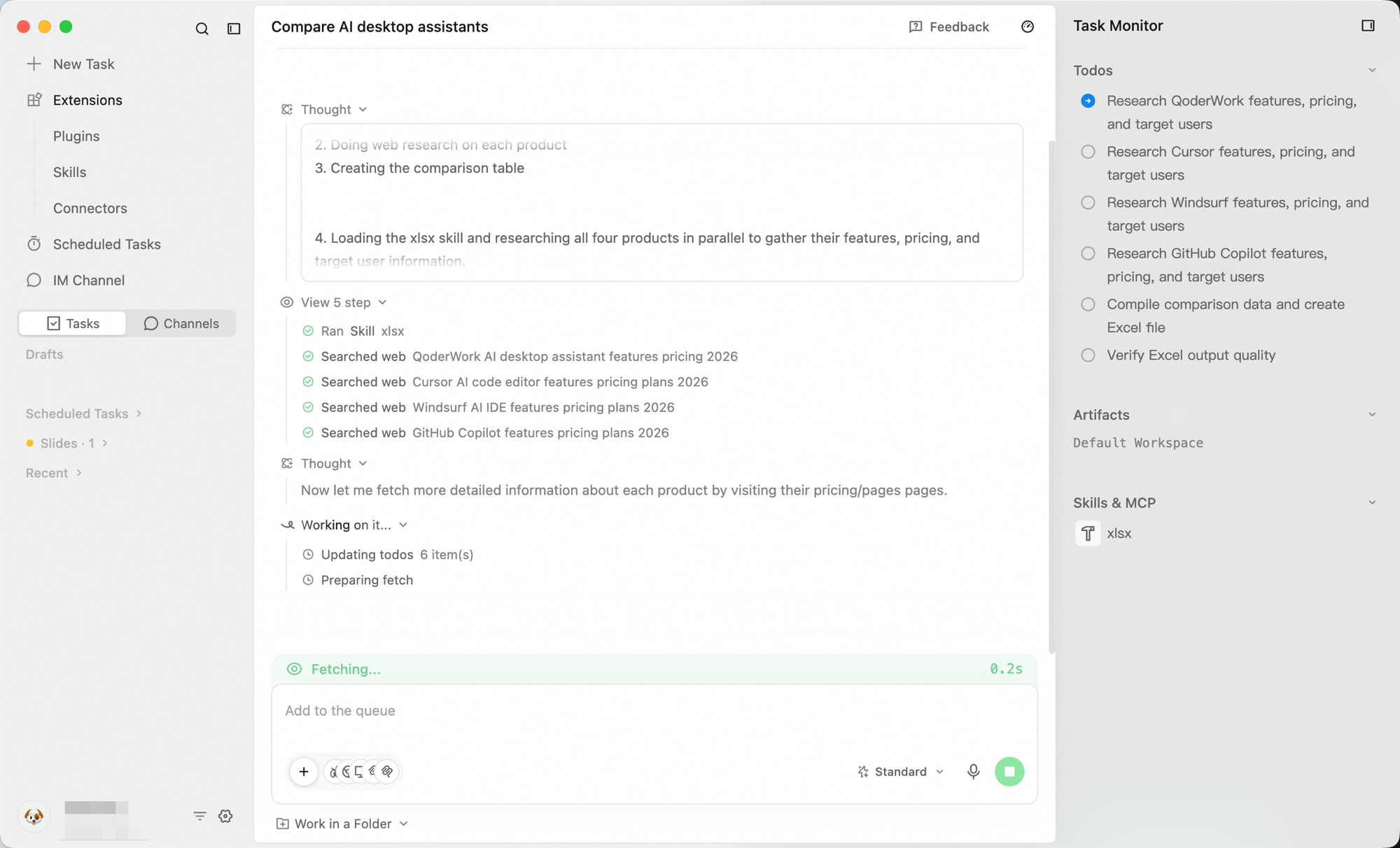 ### Task Monitor
While a task is running, the **Task Monitor** panel appears on the right to track its progress.
## Next Steps
Learn how to chat with QoderWork effectively
Manage multiple tasks, history, and progress
Pick models, workspaces, and extensions for new tasks
### Task Monitor
While a task is running, the **Task Monitor** panel appears on the right to track its progress.
## Next Steps
Learn how to chat with QoderWork effectively
Manage multiple tasks, history, and progress
Pick models, workspaces, and extensions for new tasks