> ## Documentation Index
> Fetch the complete documentation index at: https://docs.qoder.com/llms.txt
> Use this file to discover all available pages before exploring further.
# Task Conversations
> A workflow-oriented guide to creating tasks, enriching context, and tracking execution in QoderWork
You interact with QoderWork through natural-language conversation — describe a goal, the AI plans and executes, and delivers the result. This page follows the **actual workflow**, from creating a task to iterating on it.
## Create a task
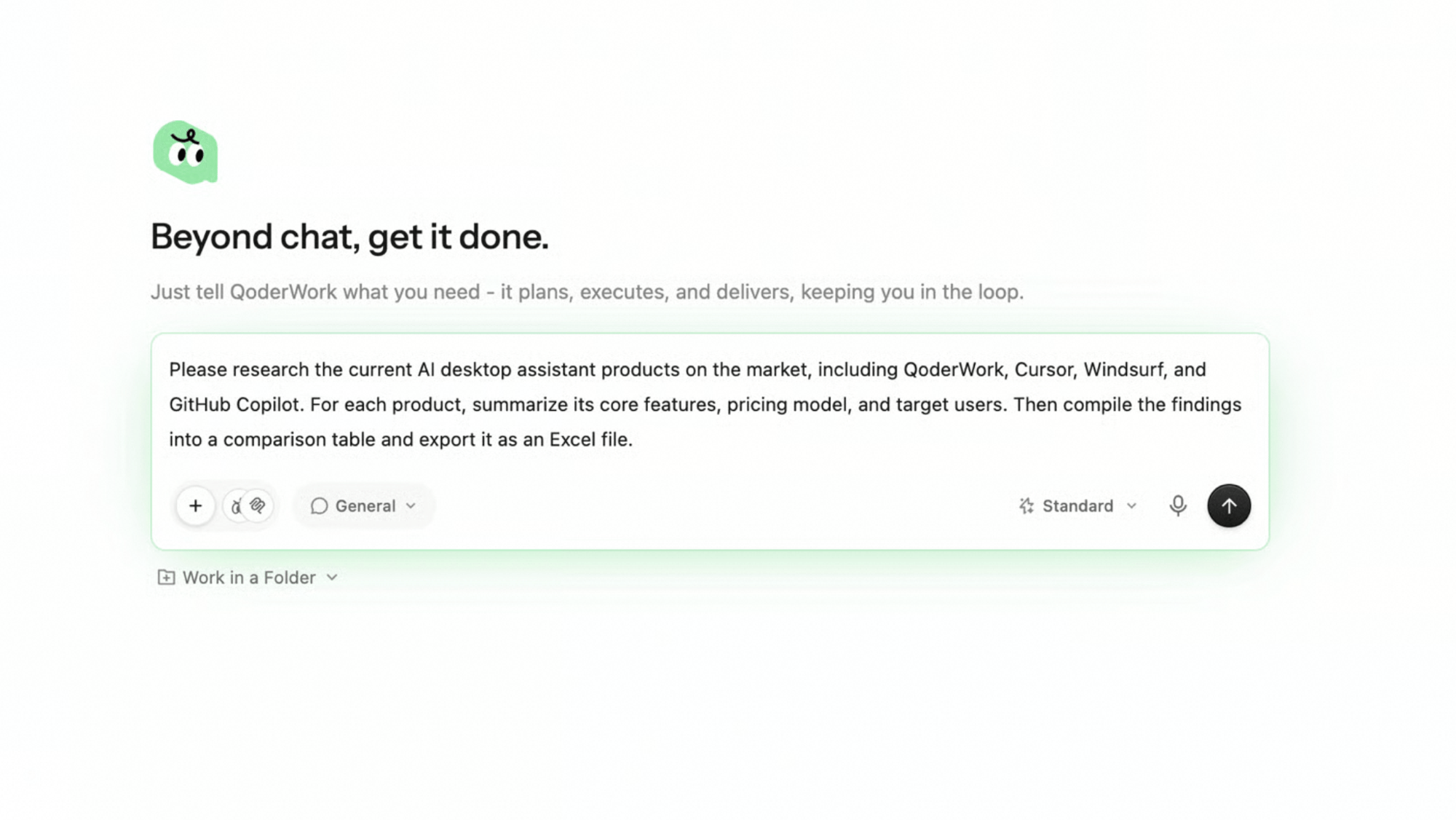
Describe the result you want in the input bar at the bottom, choose how it should run, then send. A complete task creation has four steps: **describe → workspace → model → working folder**.
Type your goal in the input bar.
The most effective prompts are *outcome-oriented* — say what you want delivered, not the steps to get there. Imagine briefing a capable colleague over chat: state the goal, the format, and any constraints.
 The **Workspace** picker at the bottom-left of the input bar (default **General**) selects the workspace the task runs in. Click it to see the available workspaces:
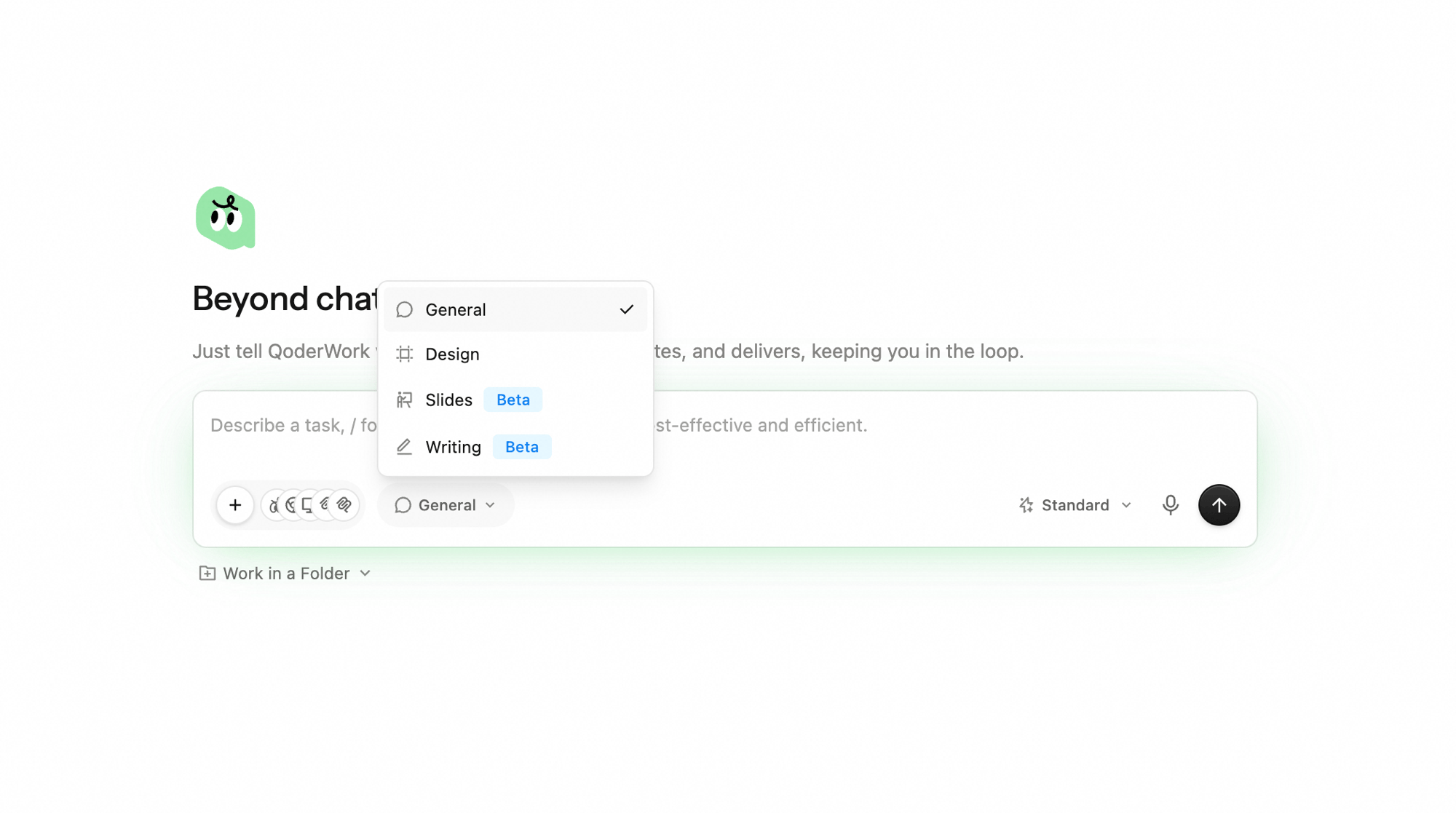 Keep **General** for everyday work. Switch to a more specialized workspace when the task calls for it.
The **Model** picker at the bottom-right of the input bar selects the model that powers the task. Click it to expand the full list.
Keep **Standard** for most everyday work. Switch to **Premium** for harder or higher-stakes deliverables, or pick **Qwen3.7-Max** when you need its specific capabilities.
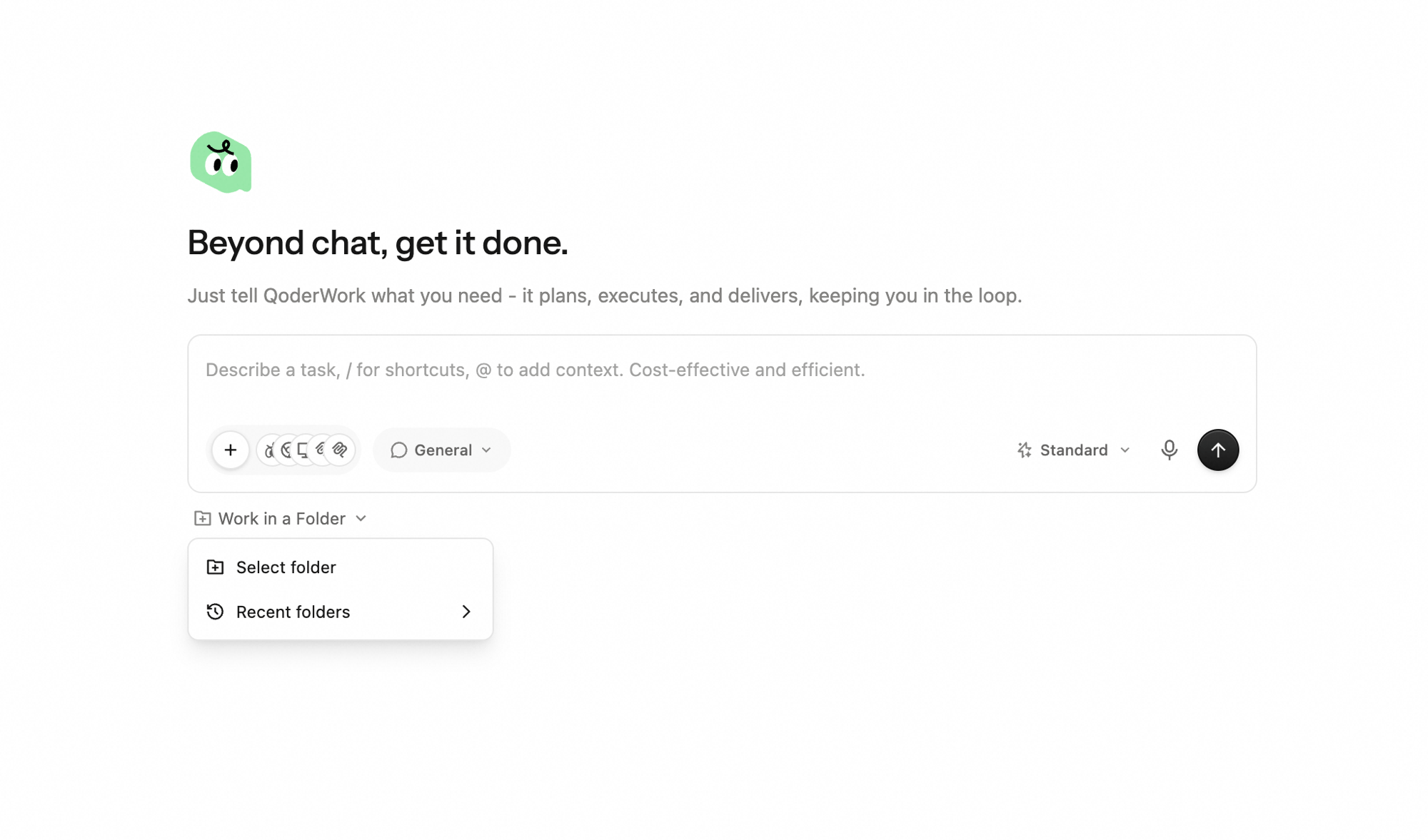
The **Work in a Folder** control at the bottom of the input bar binds the task to a local folder. Once bound, QoderWork reads from and writes into that folder. Recommended for tasks that involve multiple files or need to produce files on disk.
Keep **General** for everyday work. Switch to a more specialized workspace when the task calls for it.
The **Model** picker at the bottom-right of the input bar selects the model that powers the task. Click it to expand the full list.
Keep **Standard** for most everyday work. Switch to **Premium** for harder or higher-stakes deliverables, or pick **Qwen3.7-Max** when you need its specific capabilities.
The **Work in a Folder** control at the bottom of the input bar binds the task to a local folder. Once bound, QoderWork reads from and writes into that folder. Recommended for tasks that involve multiple files or need to produce files on disk.
 Click the send button to submit.
## Enrich the task with context
How well a task goes often depends on how much useful context the model receives up front. Beyond typing directly, you can wire all kinds of capabilities and material into a task through three entry points: the `+` button on the left of the input bar, `@` to reference something QoderWork already knows (expert kits, previous tasks, scheduled tasks), and `/` to call skills and commands.
Click the send button to submit.
## Enrich the task with context
How well a task goes often depends on how much useful context the model receives up front. Beyond typing directly, you can wire all kinds of capabilities and material into a task through three entry points: the `+` button on the left of the input bar, `@` to reference something QoderWork already knows (expert kits, previous tasks, scheduled tasks), and `/` to call skills and commands.
 ### Add an Expert Kit
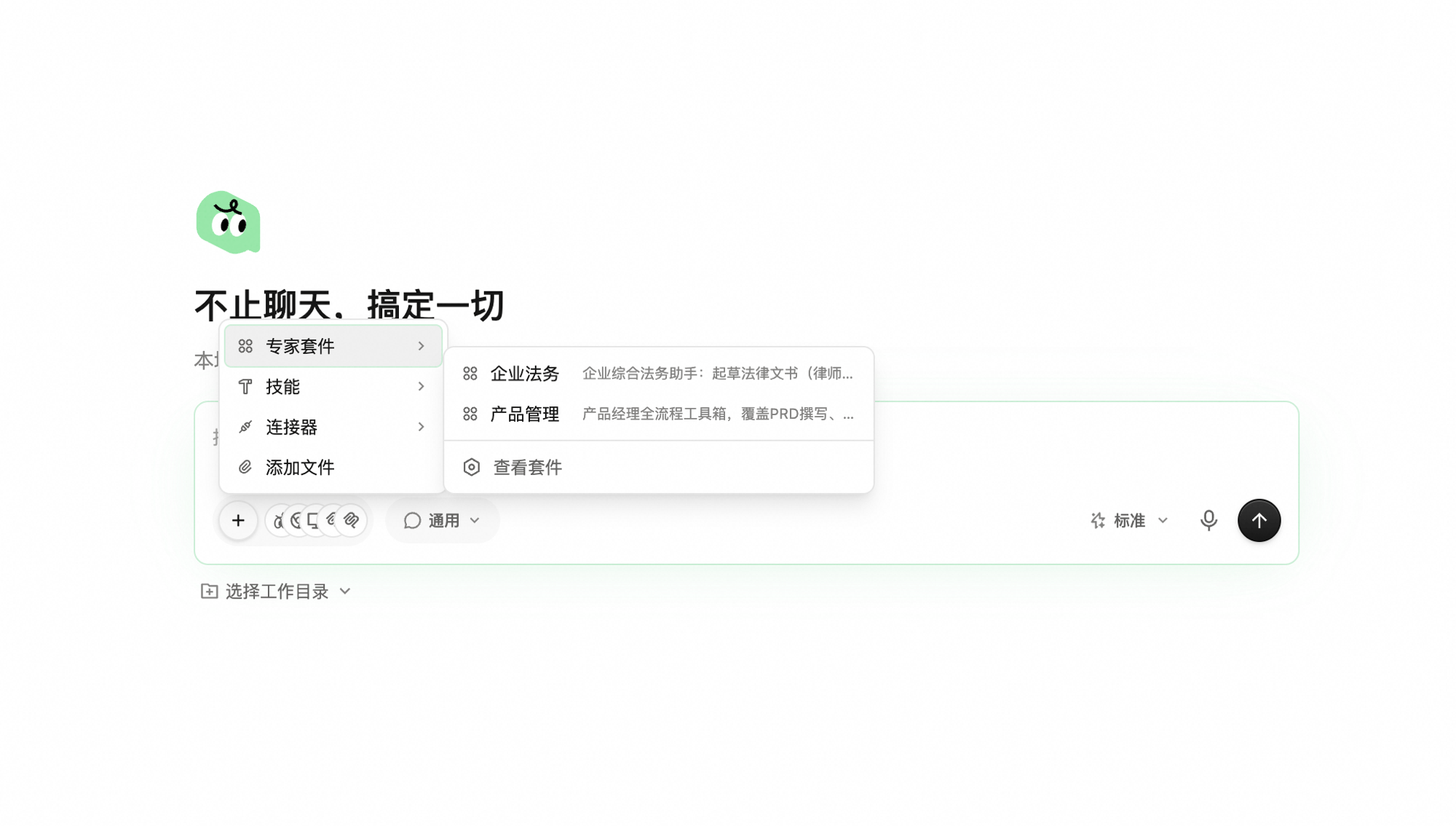
Pre-packaged domain expertise (Enterprise Legal, Product Management, etc.); one pick swaps in the prompts, skills, and reference material a specialist would use. Here you can only *reference* an already-installed Expert Kit — via the `+` menu → **Expert Kits**, or by typing `@`. To use a new kit, install it first from the Expert Kit marketplace under **Extensions → Expert Kits**; once installed, it appears here for you to reference. See [Expert Kits](/qoderwork/expert-kits).
### Add a Skill
Best when you want one ability, not a whole expert. Two ways: `+` menu → **Skills**, or type `/` in the input bar to call it directly — pre-built recipes the model follows step-by-step instead of planning from scratch. The `/` menu includes built-in commands like `find-skills`, `create-skill`, and `plugin-creator`, as well as domain skills such as `xlsx`, `pptx`, `pdf`, `docx`, and `PRD generation`. Common picks:
* `find-skills` — search the skill marketplace by describing what you want the AI to do.
* `create-skill` — capture a flow that worked into a reusable skill.
If you're not sure what's installed, just type `/` and skim the list. See [Skills](/qoderwork/skills).
### Add a Connector
External services the model can read from or act on (Jira, Slack, Notion, and more). Add one from the `+` menu → **Connectors**. See [Connectors](/qoderwork/connectors).
### Add files
Pull in local files, screenshots, and other material as task input. Two entry points: click the `+` button on the left of the input bar and choose **Add files**, or pick **Add files** at the top of the `/` menu.
### Add a scheduled task
Type `@` in the input bar to reference a configured scheduled task — pulling its setup into the current conversation without re-describing it. See [Scheduled Tasks](/qoderwork/scheduled-tasks).
*Front-load* the context. A task with the right references and attachments almost always beats a long prose description.
## While the task runs
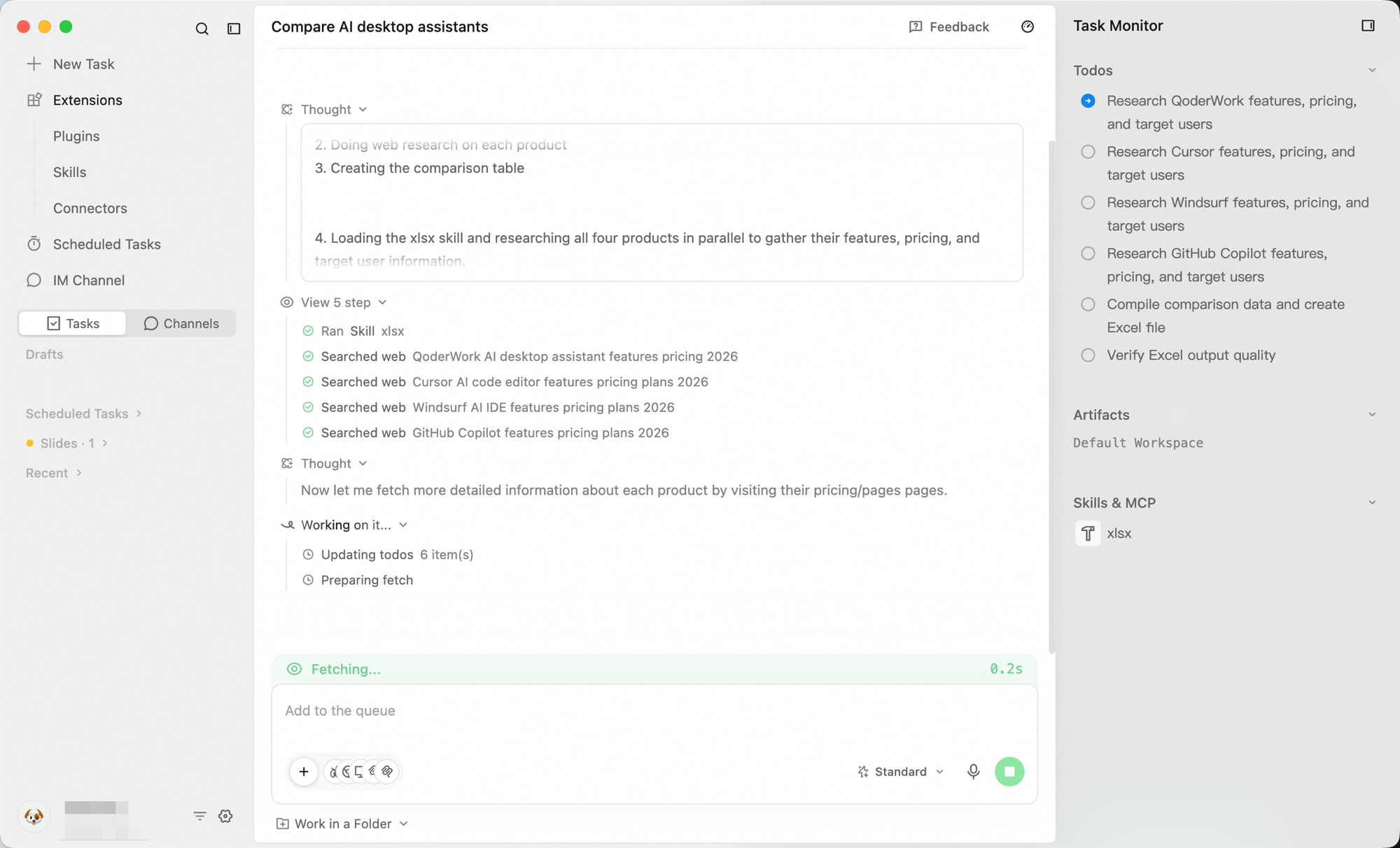
After you submit, the workspace switches to the task conversation page: the conversation stream is on the left (your back-and-forth with the AI), and the **Task Monitor** is on the right, showing what the AI is doing in real time.
### Add an Expert Kit
Pre-packaged domain expertise (Enterprise Legal, Product Management, etc.); one pick swaps in the prompts, skills, and reference material a specialist would use. Here you can only *reference* an already-installed Expert Kit — via the `+` menu → **Expert Kits**, or by typing `@`. To use a new kit, install it first from the Expert Kit marketplace under **Extensions → Expert Kits**; once installed, it appears here for you to reference. See [Expert Kits](/qoderwork/expert-kits).
### Add a Skill
Best when you want one ability, not a whole expert. Two ways: `+` menu → **Skills**, or type `/` in the input bar to call it directly — pre-built recipes the model follows step-by-step instead of planning from scratch. The `/` menu includes built-in commands like `find-skills`, `create-skill`, and `plugin-creator`, as well as domain skills such as `xlsx`, `pptx`, `pdf`, `docx`, and `PRD generation`. Common picks:
* `find-skills` — search the skill marketplace by describing what you want the AI to do.
* `create-skill` — capture a flow that worked into a reusable skill.
If you're not sure what's installed, just type `/` and skim the list. See [Skills](/qoderwork/skills).
### Add a Connector
External services the model can read from or act on (Jira, Slack, Notion, and more). Add one from the `+` menu → **Connectors**. See [Connectors](/qoderwork/connectors).
### Add files
Pull in local files, screenshots, and other material as task input. Two entry points: click the `+` button on the left of the input bar and choose **Add files**, or pick **Add files** at the top of the `/` menu.
### Add a scheduled task
Type `@` in the input bar to reference a configured scheduled task — pulling its setup into the current conversation without re-describing it. See [Scheduled Tasks](/qoderwork/scheduled-tasks).
*Front-load* the context. A task with the right references and attachments almost always beats a long prose description.
## While the task runs
After you submit, the workspace switches to the task conversation page: the conversation stream is on the left (your back-and-forth with the AI), and the **Task Monitor** is on the right, showing what the AI is doing in real time.
 ### What you're looking at
* **Conversation stream (left)** — the model streams thoughts, tool calls, and interim conclusions. Anything you'd want to read or react to.
* **Task Monitor (right)** — three panels keep you in sync with the run:
* **To-Do plan** — the steps the model committed to. Tells you what's done, what's next, and whether the plan itself makes sense.
* **Artifacts** — files being produced as the run goes; click one to preview before the run finishes. Artifacts are real local files, created and saved directly on your computer, that you can open, edit, or move at any time.
* **Skills & MCP** — which Skills and MCP tools the model is currently using.
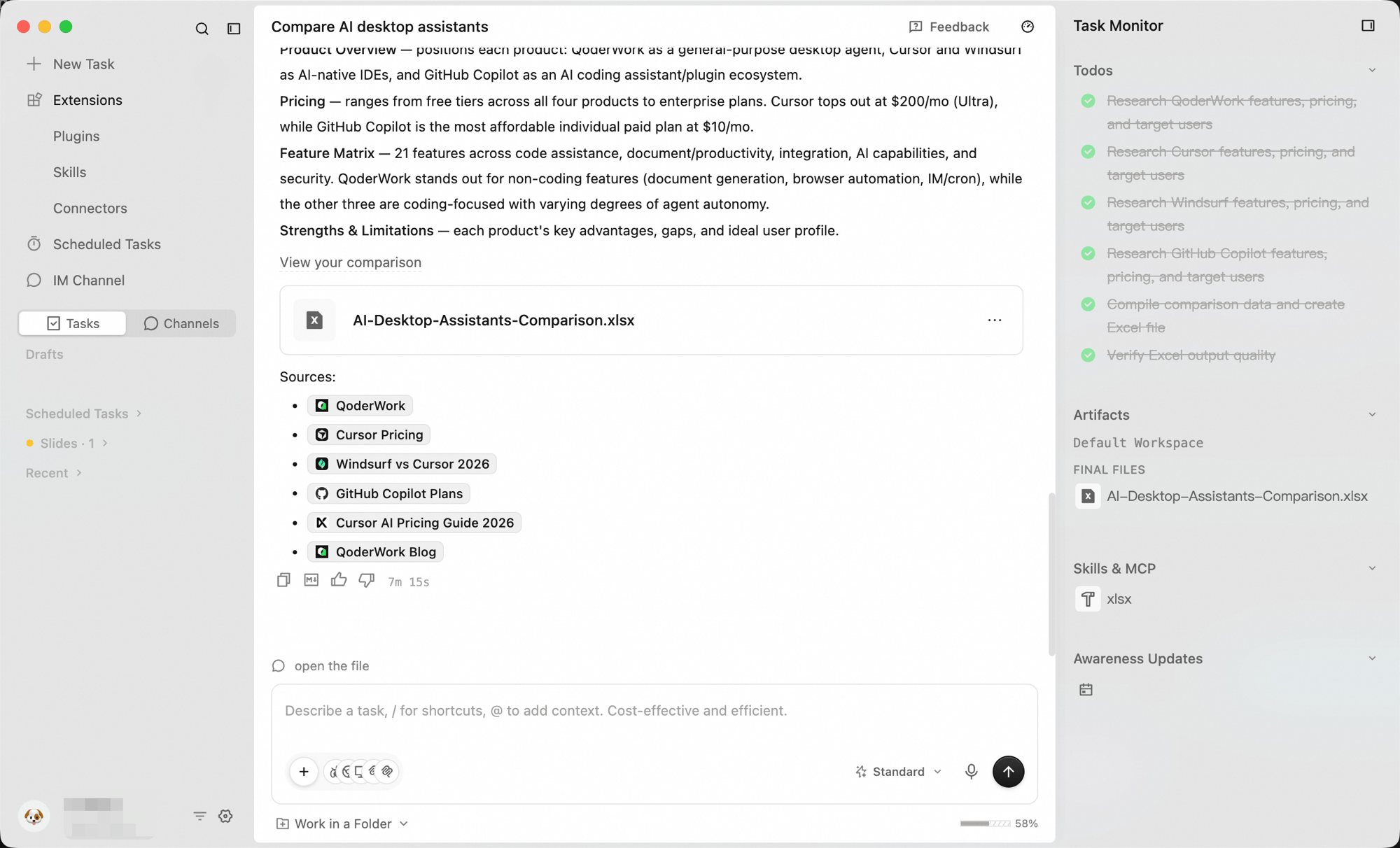
When the task completes, the result is rendered in the conversation in a readable, reusable form.
### What you're looking at
* **Conversation stream (left)** — the model streams thoughts, tool calls, and interim conclusions. Anything you'd want to read or react to.
* **Task Monitor (right)** — three panels keep you in sync with the run:
* **To-Do plan** — the steps the model committed to. Tells you what's done, what's next, and whether the plan itself makes sense.
* **Artifacts** — files being produced as the run goes; click one to preview before the run finishes. Artifacts are real local files, created and saved directly on your computer, that you can open, edit, or move at any time.
* **Skills & MCP** — which Skills and MCP tools the model is currently using.
When the task completes, the result is rendered in the conversation in a readable, reusable form.
 ## Add instructions and iterate
The input bar stays available on the task conversation page. Instructions you send while the task is still running are queued and run after the current round finishes, while instructions you send after it completes start immediately — and either way QoderWork keeps the full task context, so there's no need to repeat what you've already said.
A few common iteration patterns:
**Add during execution:**
```plaintext theme={null}
Oh, also group the data by region while you're at it
```
**Refine after completion:**
```plaintext theme={null}
The table looks good, but please change the amount column to thousands
and add a year-over-year growth rate
```
**Change the format:**
```plaintext theme={null}
Give me the same comparison as a Markdown table I can paste into Notion
```
**Add or drop a dimension:**
```plaintext theme={null}
Add a column for free-tier limits, and drop the support-email column
```
**Fix a specific row or value:**
```plaintext theme={null}
The pricing for Vendor B is wrong — the correct figure is $49/month
```
**Roll back:**
```plaintext theme={null}
Undo the last change to the chart and keep the version before that
```
Just say what you want changed or added — there's no special syntax. QoderWork edits the existing artifacts using the full task context, so iterations are fast and cumulative.
Keep related work in one task — for example, a report's first draft, revisions, and final version all in the same conversation. Start a new task for unrelated work.
## Voice input
A voice input button sits on the right side of the input bar — useful when you're sketching a long task description out loud, walking through a list of requirements, or just don't want to type. For shortcuts and language settings, see [Voice Input](/qoderwork/voice-input).
## Next Steps
Manage multiple tasks, history, and progress
View and organize AI-generated artifacts
Pick models, workspaces, and extensions for new tasks
## Add instructions and iterate
The input bar stays available on the task conversation page. Instructions you send while the task is still running are queued and run after the current round finishes, while instructions you send after it completes start immediately — and either way QoderWork keeps the full task context, so there's no need to repeat what you've already said.
A few common iteration patterns:
**Add during execution:**
```plaintext theme={null}
Oh, also group the data by region while you're at it
```
**Refine after completion:**
```plaintext theme={null}
The table looks good, but please change the amount column to thousands
and add a year-over-year growth rate
```
**Change the format:**
```plaintext theme={null}
Give me the same comparison as a Markdown table I can paste into Notion
```
**Add or drop a dimension:**
```plaintext theme={null}
Add a column for free-tier limits, and drop the support-email column
```
**Fix a specific row or value:**
```plaintext theme={null}
The pricing for Vendor B is wrong — the correct figure is $49/month
```
**Roll back:**
```plaintext theme={null}
Undo the last change to the chart and keep the version before that
```
Just say what you want changed or added — there's no special syntax. QoderWork edits the existing artifacts using the full task context, so iterations are fast and cumulative.
Keep related work in one task — for example, a report's first draft, revisions, and final version all in the same conversation. Start a new task for unrelated work.
## Voice input
A voice input button sits on the right side of the input bar — useful when you're sketching a long task description out loud, walking through a list of requirements, or just don't want to type. For shortcuts and language settings, see [Voice Input](/qoderwork/voice-input).
## Next Steps
Manage multiple tasks, history, and progress
View and organize AI-generated artifacts
Pick models, workspaces, and extensions for new tasks