> ## Documentation Index
> Fetch the complete documentation index at: https://docs.qoder.com/llms.txt
> Use this file to discover all available pages before exploring further.
# Task Board
> The task board is used to find tasks, check statuses, and handle to-dos.
The task board is used to find tasks, check statuses, and handle to-dos. Creating or modifying tasks still requires going back to Chat, Automated Tasks, or WakerFlow.
## View Tasks and Determine Status
Click "Task Board" in the left sidebar to enter "Task Tracking." The top of the page provides filters and allows you to switch between list and swimlane views. Accounts with manual processing capabilities will also see the "Approval Workspace."
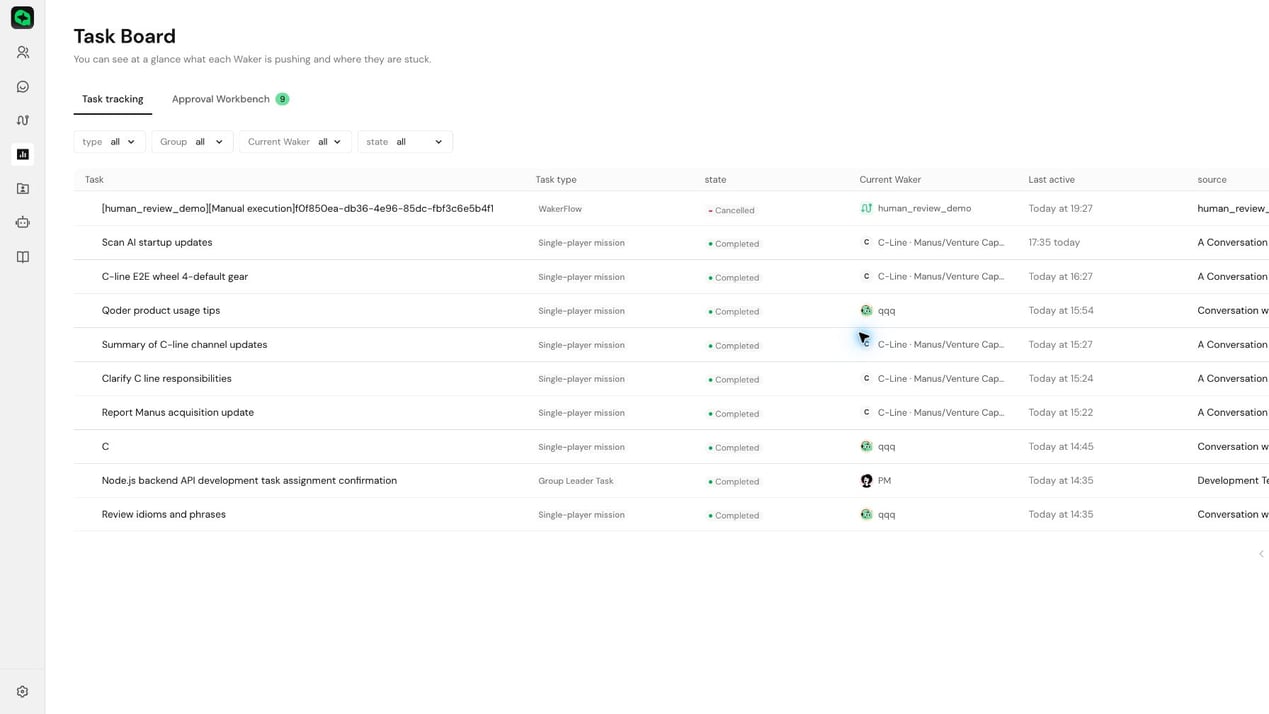 **Completion check:** The page displays a task list or "No tasks," rather than remaining in a loading state.
| Status | Meaning | Suggested Action |
| ----------------- | -------------------------------------------------- | ---------------------------------------------------------------------------------------------- |
| Queued / Running | Task has not finished yet | Check the last active time; inspect devices and services if there is no change for a long time |
| Action Required | Waiting for confirmation, answer, or authorization | Go to the Approval Workspace or the original task to handle it |
| Completed | The current run has finished | Return to the source page to check replies and outputs |
| Failed / Canceled | Run encountered an error or was terminated | Open the original task to see the reason and retry as needed |
"Completed" only means the run has finished — it does not guarantee that the business result is correct. Before delivery, you should still open the original task to verify outputs, files, and key conclusions.
## Find and Handle Tasks
1. In the list view, filter by type, group, Waker, or status; confirm the target based on name, source, and last active time.
2. Switch to the swimlane view when you need to see overall distribution — prioritize "Action Required" and "Failed / Canceled."
3. When there are items awaiting confirmation, go to the "Approval Workspace," click "Handle," and complete the operation in the original task.
4. Click the task name or card to return to the original conversation, automated task, or WakerFlow to view the full result.
**Completion check:** You can open the correct source page, the task status is consistent with the source page, and the task continues running or finishes after handling the to-do.
The task board cannot create tasks, force status changes, or display full business logs. If you cannot see a task, clear all filters and re-enter the page first, then go back to the original task to confirm whether it was actually created.
**Completion check:** The page displays a task list or "No tasks," rather than remaining in a loading state.
| Status | Meaning | Suggested Action |
| ----------------- | -------------------------------------------------- | ---------------------------------------------------------------------------------------------- |
| Queued / Running | Task has not finished yet | Check the last active time; inspect devices and services if there is no change for a long time |
| Action Required | Waiting for confirmation, answer, or authorization | Go to the Approval Workspace or the original task to handle it |
| Completed | The current run has finished | Return to the source page to check replies and outputs |
| Failed / Canceled | Run encountered an error or was terminated | Open the original task to see the reason and retry as needed |
"Completed" only means the run has finished — it does not guarantee that the business result is correct. Before delivery, you should still open the original task to verify outputs, files, and key conclusions.
## Find and Handle Tasks
1. In the list view, filter by type, group, Waker, or status; confirm the target based on name, source, and last active time.
2. Switch to the swimlane view when you need to see overall distribution — prioritize "Action Required" and "Failed / Canceled."
3. When there are items awaiting confirmation, go to the "Approval Workspace," click "Handle," and complete the operation in the original task.
4. Click the task name or card to return to the original conversation, automated task, or WakerFlow to view the full result.
**Completion check:** You can open the correct source page, the task status is consistent with the source page, and the task continues running or finishes after handling the to-do.
The task board cannot create tasks, force status changes, or display full business logs. If you cannot see a task, clear all filters and re-enter the page first, then go back to the original task to confirm whether it was actually created.