> ## Documentation Index
> Fetch the complete documentation index at: https://docs.qoder.com/llms.txt
> Use this file to discover all available pages before exploring further.
# Memory
> Memory preserves stable responsibilities, preferences, rules, and project experience across sessions.
Memory is used to preserve stable responsibilities, preferences, rules, and project experience across sessions. One-time requirements and temporary constraints should be written in the current task instead.
## View Memory and Confirm Scope
| Level | Effective Scope | Suitable For |
| --------------- | ------------------------------------------------------------ | ------------------------------------------------------- |
| Personal Memory | Across different sessions and projects for the current Waker | Responsibilities, stable preferences, and general rules |
| Project Memory | Specified project only | Project structure, conventions, and delivery standards |
The system may automatically summarize memory, but important rules still require manual review.
1. Go to the target Waker's detail page.
2. Click "Memory" and review content in "Memory Overview" or "All Memories."
3. Use the search box, category cards, or project dropdown to locate the target memory.
4. In "All Memories," confirm whether the current scope is personal or project-level.
5. Before editing project memory, verify the project name and status; click "Retry Initialization" if initialization failed.
6. Projects no longer in use can be archived — confirm that no subsequent tasks depend on them before archiving.
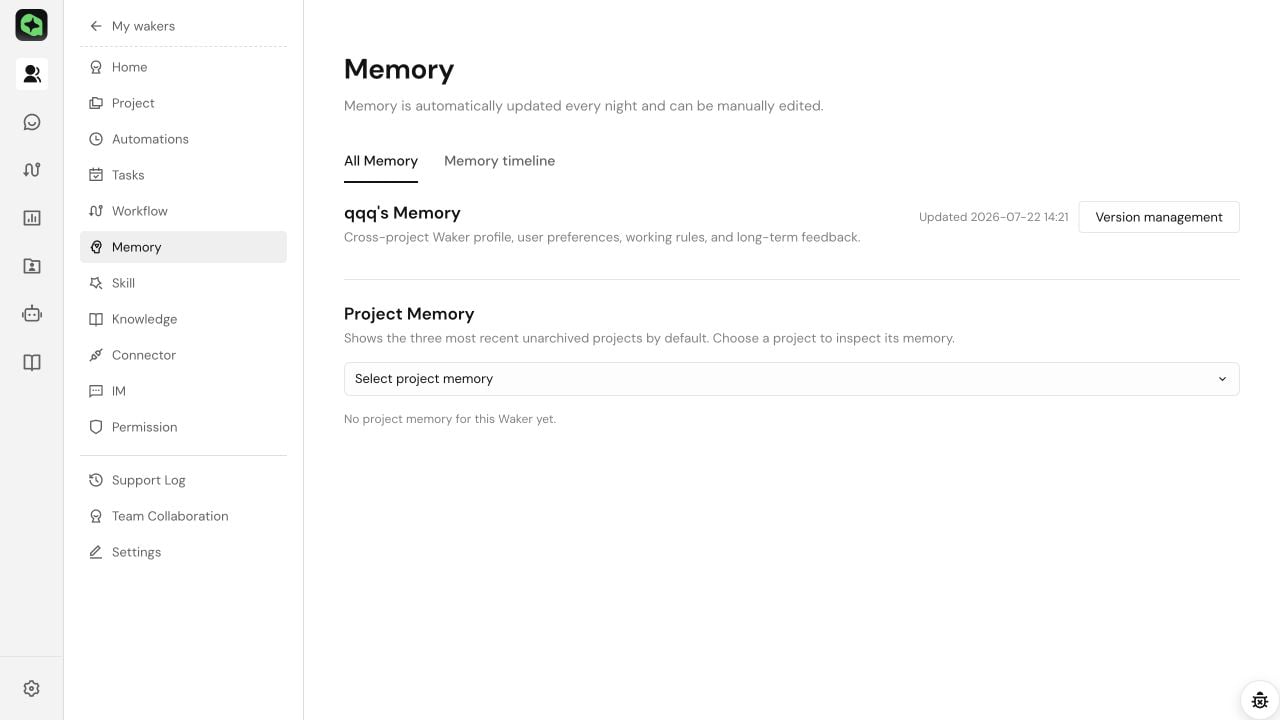 When a new Waker has not yet had an effective session, the page may display "No content yet."
Personal rules take effect across projects, while project rules only apply to the specified project. Do not write project-specific exceptions into personal memory.
## Edit Memory
1. Find the target category in the category cards.
2. Click "Edit," modify the content using concise, clear Markdown, and save.
3. Go to "Memory Timeline" to confirm that a manual edit record has appeared, then verify with a new conversation.
Use "Edit Full Memory" when adjusting across categories; for normal modifications, prefer editing a single category. When a content conflict prompt appears, load the latest content and compare differences first — do not overwrite directly.
## Trace, Rollback, and Maintain Memory
### Trace Changes
1. Switch to the "Memory Timeline."
2. Filter by time and source, then open a record to view its scope, category, and change content.
3. When a Waker suddenly follows an incorrect rule, first look for the most recent additions or updates.
### Roll Back to a Historical Version
1. Click "Version Management" on the memory page.
2. Select a version to view the full content and differences.
3. After verifying the scope, click "Rollback."
4. Return to the current version to check the content, and verify with a new conversation.
Periodically delete one-time requirements, expired conventions, unconfirmed conclusions, and duplicate rules. Check whether the personal/project scope is correct. Passwords, tokens, and customer privacy must not be written into memory.
## Memory Troubleshooting
| Symptom | Resolution |
| ------------------------------------ | -------------------------------------------------------------------------------------------------------------------- |
| New Waker has no memory | Complete an effective session first and wait for automatic summarization; manually add stable rules if necessary |
| Project memory stuck initializing | Refresh the page; confirm the project still exists; click "Retry Initialization" if it failed |
| Waker does not follow a certain rule | Confirm the scope the rule belongs to; check whether it conflicts with a more specific rule; verify in a new session |
| Waker follows an outdated rule | Search for the keyword in the overview → check the timeline source → edit or rollback |
| Conflict occurs when saving | Load the latest content and compare differences — do not blindly overwrite |
| No visible change after rollback | Confirm the personal/project scope and refresh the current version |
How to verify after modifying memory: start a new conversation and ask a question that clearly tests the rule. Do not judge the actual effect solely based on what is displayed on the memory page.
When a new Waker has not yet had an effective session, the page may display "No content yet."
Personal rules take effect across projects, while project rules only apply to the specified project. Do not write project-specific exceptions into personal memory.
## Edit Memory
1. Find the target category in the category cards.
2. Click "Edit," modify the content using concise, clear Markdown, and save.
3. Go to "Memory Timeline" to confirm that a manual edit record has appeared, then verify with a new conversation.
Use "Edit Full Memory" when adjusting across categories; for normal modifications, prefer editing a single category. When a content conflict prompt appears, load the latest content and compare differences first — do not overwrite directly.
## Trace, Rollback, and Maintain Memory
### Trace Changes
1. Switch to the "Memory Timeline."
2. Filter by time and source, then open a record to view its scope, category, and change content.
3. When a Waker suddenly follows an incorrect rule, first look for the most recent additions or updates.
### Roll Back to a Historical Version
1. Click "Version Management" on the memory page.
2. Select a version to view the full content and differences.
3. After verifying the scope, click "Rollback."
4. Return to the current version to check the content, and verify with a new conversation.
Periodically delete one-time requirements, expired conventions, unconfirmed conclusions, and duplicate rules. Check whether the personal/project scope is correct. Passwords, tokens, and customer privacy must not be written into memory.
## Memory Troubleshooting
| Symptom | Resolution |
| ------------------------------------ | -------------------------------------------------------------------------------------------------------------------- |
| New Waker has no memory | Complete an effective session first and wait for automatic summarization; manually add stable rules if necessary |
| Project memory stuck initializing | Refresh the page; confirm the project still exists; click "Retry Initialization" if it failed |
| Waker does not follow a certain rule | Confirm the scope the rule belongs to; check whether it conflicts with a more specific rule; verify in a new session |
| Waker follows an outdated rule | Search for the keyword in the overview → check the timeline source → edit or rollback |
| Conflict occurs when saving | Load the latest content and compare differences — do not blindly overwrite |
| No visible change after rollback | Confirm the personal/project scope and refresh the current version |
How to verify after modifying memory: start a new conversation and ask a question that clearly tests the rule. Do not judge the actual effect solely based on what is displayed on the memory page.