> ## Documentation Index
> Fetch the complete documentation index at: https://docs.qoder.com/llms.txt
> Use this file to discover all available pages before exploring further.
# Domains Verification
> This guide explains the functionality of domain verification and how to configure it.
Applicable plans: Teams, Enterprise
By verifying ownership of your company's email domain, you ensure that only users with an email address at that domain can join your organization.
Once domain verification is enabled, all users invited via link and those signing in through SSO are subject to domain restrictions. Users with email addresses that do not match a verified domain will be denied access to the organization.
### **Add a Domain**
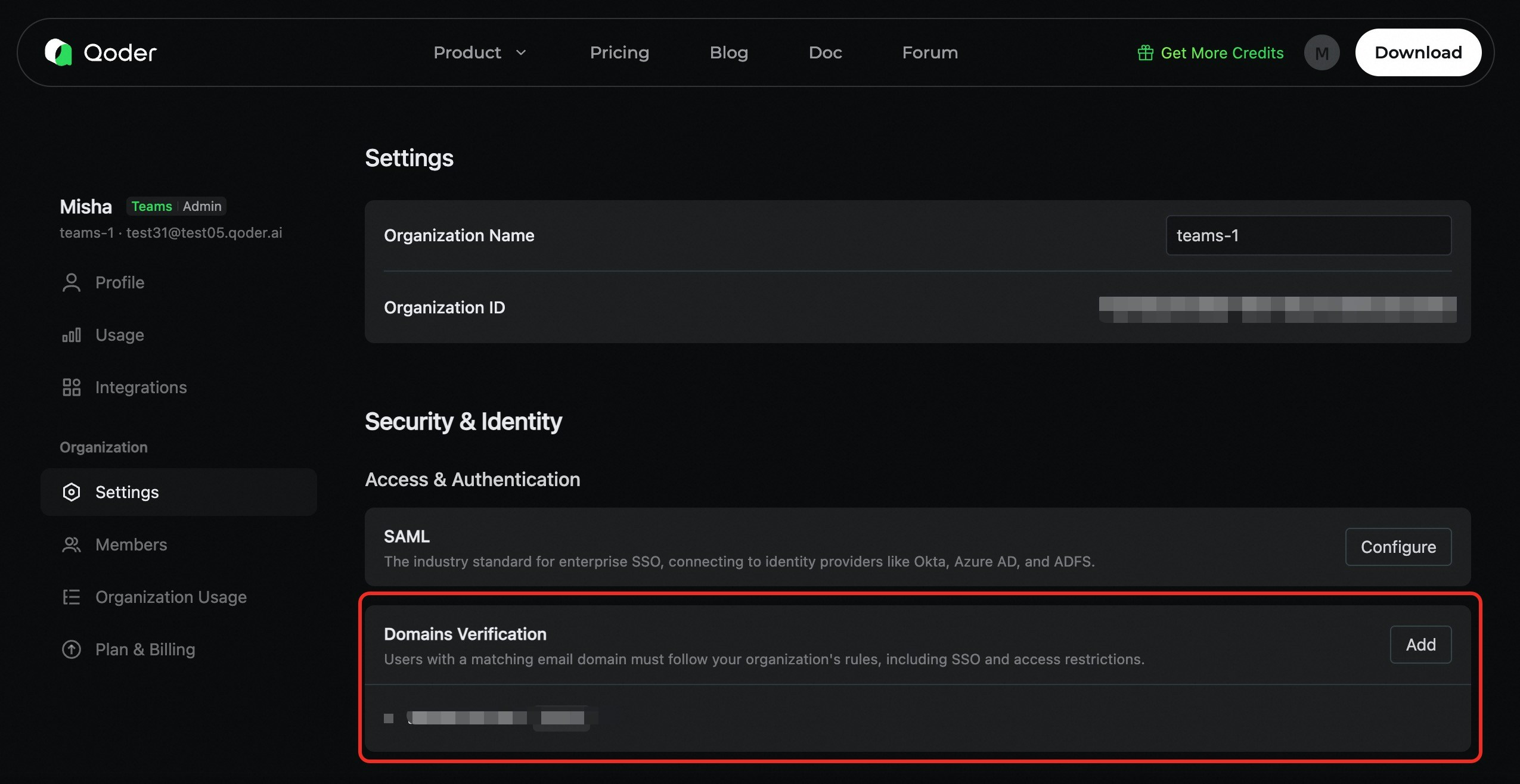
1. As an organization administrator, navigate to **Organization Settings** > **Email Domains**.
2. Click **Add Domain**.
3. Enter your company's email domain (e.g., `company.com`, without the `@` symbol).
4. Click **Add**.
Only add domains that your organization owns and controls. Do not add public domains such as `gmail.com`.
 ### **Add DNS TXT Record**
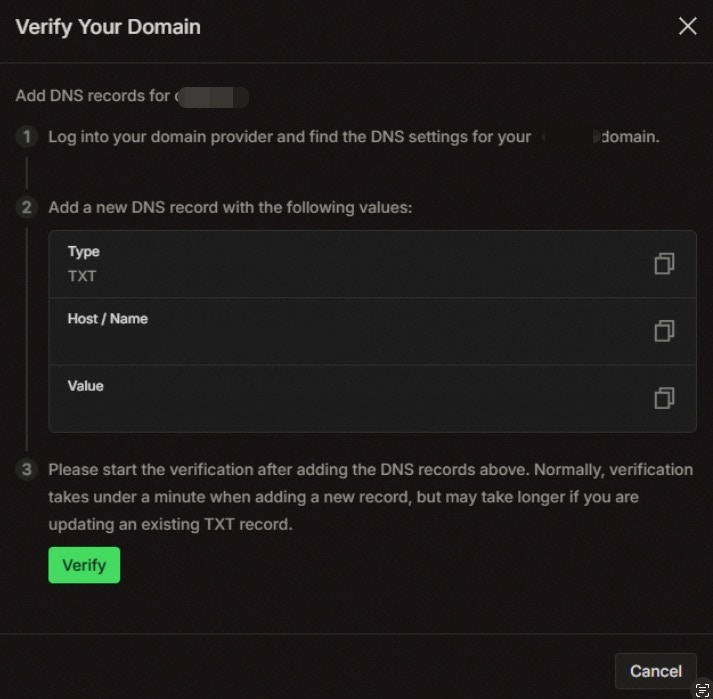
Navigate to your domain's DNS management console and configure the following DNS TXT record:
| **Field** | **Value** | **Example** |
| :------------ | :--------------------------------------- | :------------------------ |
| **Type** | TXT | TXT |
| **Host/Name** | Your domain (or `@` for the root domain) | `company.com` 或 `@` |
| **Value** | The verification token provided by Qoder | `a1b2c3d4e5f6g7h8i9j0...` |
| **TTL** | 600 (or use the default value) | 600 |
After you click "Add Domain", the verification token value will be displayed in a pop-up window. Simply copy and paste it to your DNS server's management console.
### **Add DNS TXT Record**
Navigate to your domain's DNS management console and configure the following DNS TXT record:
| **Field** | **Value** | **Example** |
| :------------ | :--------------------------------------- | :------------------------ |
| **Type** | TXT | TXT |
| **Host/Name** | Your domain (or `@` for the root domain) | `company.com` 或 `@` |
| **Value** | The verification token provided by Qoder | `a1b2c3d4e5f6g7h8i9j0...` |
| **TTL** | 600 (or use the default value) | 600 |
After you click "Add Domain", the verification token value will be displayed in a pop-up window. Simply copy and paste it to your DNS server's management console.
 ### **Verify the Domain**
Once the DNS record has propagated, return to the Domain Management page in Qoder and click the **Verify** button to initiate the verification.
* If the verification is successful, the domain's status will change to **Verified**, and it will be enabled immediately.
* If the verification fails, the domain's status will change to **Verification Failed**. You can then review your configuration and try verifying again.
### **Delete a Domain**
Administrators can remove a domain from the Domain Management list. During this process, a check is performed: if SSO is currently enabled, at least one valid, verified domain **must be retained**.
### **Verify the Domain**
Once the DNS record has propagated, return to the Domain Management page in Qoder and click the **Verify** button to initiate the verification.
* If the verification is successful, the domain's status will change to **Verified**, and it will be enabled immediately.
* If the verification fails, the domain's status will change to **Verification Failed**. You can then review your configuration and try verifying again.
### **Delete a Domain**
Administrators can remove a domain from the Domain Management list. During this process, a check is performed: if SSO is currently enabled, at least one valid, verified domain **must be retained**.